How to white-label the plugin
Replace the xSpeed name, logo and attribution with your own so client sites show your agency's branding instead of the plugin vendor's.
If you build sites for clients, every plugin in their admin is a small advert for someone else. Branding replaces xSpeed’s name, logo and attribution with yours, so the caching panel looks like part of the site you delivered rather than a third-party tool.
Where to find it
- In your WordPress admin, click xSpeed Cache in the left menu.
- In the xSpeed Cache sidebar, open the Settings group.
- Click the Branding card.
Shortcut: open
wp-admin/admin.php?page=xspeed#/settings/white-labeldirectly.⭐ This panel is part of xSpeed Pro.
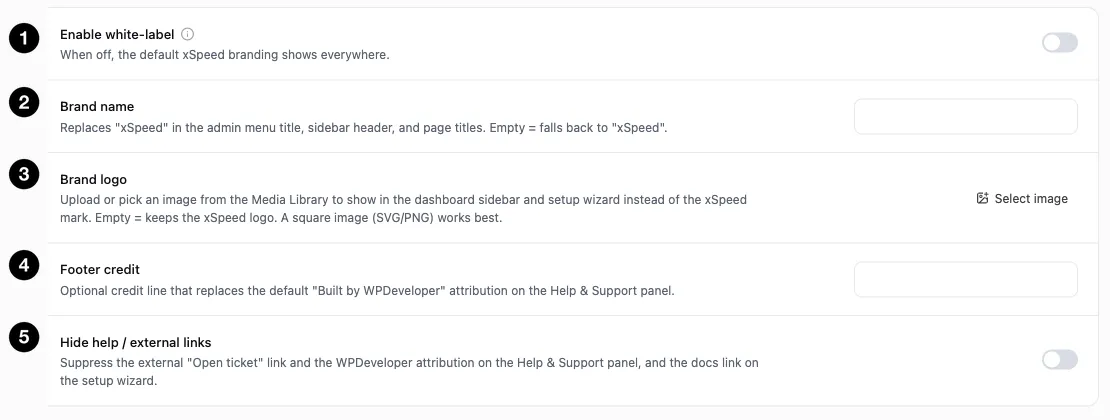
- Enable white-label — the master switch.
- Brand name — replaces “xSpeed” throughout the admin.
- Brand logo — replaces the xSpeed mark.
- Footer credit — replaces the default attribution.
- Hide help / external links — suppress outbound links.
Settings at a glance
| Setting | Default | What it does |
|---|---|---|
| Enable white-label | Off | Master switch. Off = default xSpeed branding everywhere. |
| Brand name | Empty | Replaces “xSpeed” in menu title, sidebar header and page titles. |
| Brand logo | Empty | Image shown in the dashboard sidebar and setup wizard. |
| Footer credit | Empty | Replaces “Built by WPDeveloper” on the Help & Support panel. |
| Hide help / external links | Off | Suppresses outbound links and vendor attribution. |
Every field is empty by default and falls back gracefully — an empty Brand name keeps “xSpeed”, an empty logo keeps the xSpeed mark. So you can rebrand partially without anything looking broken.
How it works
Turn on Enable white-label and the fields below take effect. Leave it off and the defaults show everywhere, regardless of what you’ve typed — useful for preparing branding before switching it on.
The four fields cover the places the plugin names itself:
Brand name replaces “xSpeed” in the admin menu title, the sidebar header, and page titles — the text a client sees most often.
Brand logo takes an image from the Media Library, shown in the dashboard sidebar and the setup wizard instead of the xSpeed mark. The panel recommends a square image (SVG or PNG); a wide logo will be letterboxed awkwardly in a square slot.
Footer credit replaces the default “Built by WPDeveloper” attribution on the Help & Support panel — your agency name, or a support address the client should actually contact.
Hide help / external links
Off by default, and worth understanding before you enable it, because it affects what your client can reach.
It suppresses three things: the external Open ticket link, the WPDeveloper attribution on the Help & Support panel, and the docs link on the setup wizard.
The case for it is straightforward — if you’re presenting this as your own tool, a link to another vendor’s ticket system contradicts that, and you probably want support requests coming to you.
⚠️ This removes your client’s route to vendor support. That’s the intent, but it means you’re now their only support channel. Combine it with a Footer credit naming how to reach you — otherwise a stuck client has no visible path to anyone at all.