How to set browser cache headers
Tell your visitors' browsers how long to keep CSS, JavaScript, fonts and images — so repeat visits load from their own disk instead of your server.
Page Cache saves work on your server. Browser Cache goes one step further and saves the request entirely: it tells each visitor’s browser to keep your CSS, JavaScript, fonts and images on their own disk, so a repeat visit doesn’t ask your server for them at all. The fastest request is the one that never happens.
Where to find it
- In your WordPress admin, click xSpeed Cache in the left menu.
- In the xSpeed Cache sidebar, open the Cache group.
- Click the Browser Cache card.
Shortcut: open
wp-admin/admin.php?page=xspeed#/cache/browser-cachedirectly.✅ This panel is part of xSpeed Cache (Free).
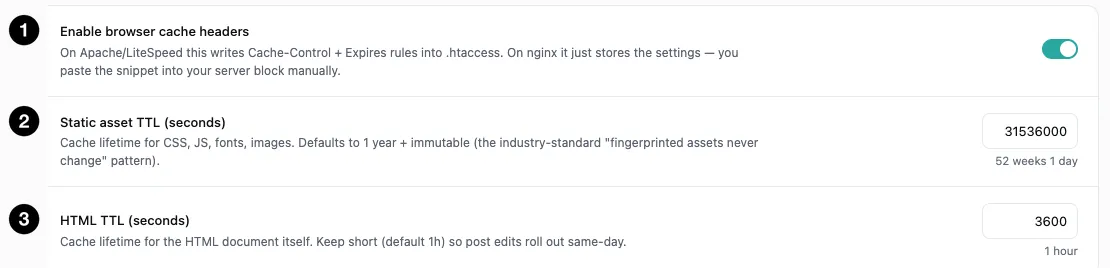
- Enable browser cache headers — the master switch.
- Static asset TTL — how long browsers keep CSS, JS, fonts and images.
- HTML TTL — how long browsers keep the page document itself.
Settings at a glance
| Setting | Default | What it does |
|---|---|---|
| Enable browser cache headers | Off | Writes Cache-Control + Expires rules. |
| Static asset TTL | 31536000 s (1 year) | Lifetime for CSS, JS, fonts, images. |
| HTML TTL | 3600 s (1 hour) | Lifetime for the HTML document. |
How it works
When a browser downloads a file, it asks your server how long it may keep it. That answer travels in two response headers — Cache-Control and Expires — and this panel is where you set them. Turn it on and repeat visitors load your logo, stylesheet, and fonts straight from their own disk: no network request, no waiting, no load on you.
How that gets applied depends on your server, and this is the part worth understanding before you enable it:
| Server | What happens |
|---|---|
| Apache / LiteSpeed | xSpeed writes the rules directly into your .htaccess. Nothing further to do. |
| nginx | xSpeed only stores the settings — it cannot edit nginx config. You must paste a snippet into your server block yourself. |
That difference catches people out. On nginx, switching this on and walking away accomplishes nothing: your settings are saved, but no headers change until the snippet is in your server block and nginx is reloaded. You can print it with WP-CLI:
wp xspeed browser-cache nginxThe same command takes apache if you’d rather apply the rules yourself instead of letting xSpeed edit .htaccess.
💡 The nginx snippet sends
Cache-Controlonly. nginx’s ownexpiresdirective adds a secondCache-Controlheader on top of the one the snippet needs forimmutable, so the snippet switches it off and sets the header once. It also applies only to successful responses — an asset that briefly 404s after a purge is never cached as a 404 for a year. Apache still sends bothCache-ControlandExpires.If you pasted the nginx snippet before version 1.3.0, print it again and replace the old block. The earlier snippet paired the two directives and put two
Cache-Controlheaders on every static file.
The two lifetimes, and why they differ so much
The defaults look wildly inconsistent — one year for assets, one hour for HTML. That’s deliberate, and it’s the standard pattern for a good reason.
Static assets: 1 year, immutable. Modern build tools fingerprint asset filenames — admin.4f2a91.css rather than admin.css. When the file changes, the name changes. So the file at any given URL genuinely never changes, and telling browsers to keep it for a year is safe. If you ship an update, visitors request a new filename and fetch it fresh. This is the industry-standard “fingerprinted assets never change” approach, and it’s why a year isn’t reckless.
HTML: 1 hour. The document at /about/ keeps that URL forever, but its content changes whenever you edit the page. A long HTML lifetime means visitors keep seeing an old copy from their own disk — and unlike your server cache, you cannot purge a visitor’s browser. A purge button reaches your server; it can’t reach into someone’s laptop. That asymmetry is the whole argument for keeping HTML short.
⚠️ Don’t raise HTML TTL to “make the site faster.” It won’t measurably, and it will strand visitors on stale pages for however long you set — with no way to fix it but waiting. If you edit content regularly, an hour is already generous.
Both fields accept 0 to 31536000 seconds (0 to one year). Setting either to 0 disables caching for that type.