How to get support
Copy a one-click system snapshot — versions, server details, active modules, licence state — so a support ticket starts with the facts instead of twenty questions.
Most support exchanges start with the same round of questions: what versions, which server, what’s enabled. This panel answers all of them in one copyable block, so your first message contains what’s needed instead of prompting a reply asking for it.
Where to find it
- In your WordPress admin, click xSpeed Cache in the left menu.
- In the xSpeed Cache sidebar, open the Settings group.
- Click the Help & Support card.
Shortcut: open
wp-admin/admin.php?page=xspeed#/settings/supportdirectly.✅ This panel is part of xSpeed Cache (Free).

- Help & Support — documentation and ticket links.
Settings at a glance
This panel presents no controls to configure — it’s links plus a generated report:
| Element | What it does |
|---|---|
| Help & Support | Links to documentation and to open a ticket. |
| System snapshot | Environment report, with Refresh and Copy markdown. |
The module does hold one stored setting, support_url, which decides where Open ticket goes. It isn’t exposed on this panel — change it via REST or WP-CLI if you need tickets pointed somewhere other than xSpeed’s own support page.
How it works
The snapshot is generated on demand from your live install. Refresh regenerates it; Copy markdown puts it on your clipboard formatted for pasting straight into a ticket, forum post or email.
The system snapshot
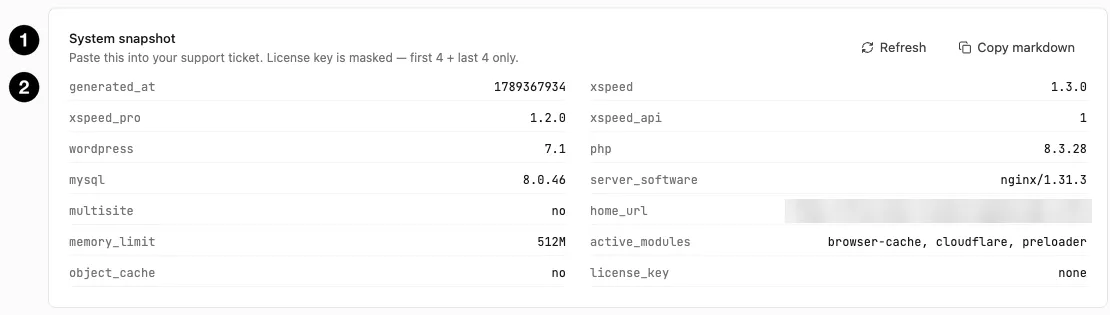
- System snapshot — with Refresh and Copy markdown.
- The report itself — versions, server, modules, licence.
| Field | Why support asks for it |
|---|---|
xspeed / xspeed_pro | Plugin versions — the first thing any bug report needs. |
xspeed_api | Internal API version, for compatibility between Free and Pro. |
wordpress / php / mysql | Platform versions. |
server_software | Apache vs nginx vs LiteSpeed decides what xSpeed can configure automatically. |
multisite | Whether network features apply. |
memory_limit | Relevant to bulk operations like image conversion. |
object_cache | Whether a persistent object cache is active. |
home_url | Which site this is. |
active_modules | What’s switched on — often the answer on its own. |
license_key | Licence state. |
active_modules is the field that resolves most tickets. “Caching isn’t working” and a module list not including cache is a complete diagnosis in one line.
🔒 The licence key is masked in the snapshot — first four and last four characters only. The panel states this above the report: “License key is masked — first 4 + last 4 only.”
That’s a thoughtful default, because a system report is precisely the thing people paste into public forums without reading it closely. It’s enough for support to identify your licence, not enough for anyone else to use it.
Writing a useful ticket
The snapshot covers environment. It can’t cover what you did, so add:
- What you expected and what happened instead.
- Which panel and setting — this documentation’s page titles are a precise way to name them.
- When it started, and what changed around then — the activity log records settings changes with old and new values, which is often the missing piece.
- The snapshot, pasted via Copy markdown.
That combination — environment, action, timing — is usually enough to skip the back-and-forth entirely.