How to auto-tune your cache lifetime
Stop guessing at a cache lifetime. Adaptive Cache reads your last 24 hours of traffic, recommends a TTL that fits your actual visitor pattern, and applies it in one click.
Picking a cache lifetime is guesswork. Too short and you rebuild pages that hadn’t changed; too long and edits go stale. Adaptive Cache removes the guess: it profiles your last 24 hours of real traffic, recommends a lifetime that fits your actual visitor pattern, explains its reasoning in plain English, and applies it with one click.
Where to find it
- In your WordPress admin, click xSpeed Cache in the left menu.
- In the xSpeed Cache sidebar, open the Cache group.
- Click the Adaptive Cache card.
Shortcut: open
wp-admin/admin.php?page=xspeed#/cache/adaptive-cachedirectly.⭐ This panel is part of xSpeed Pro.
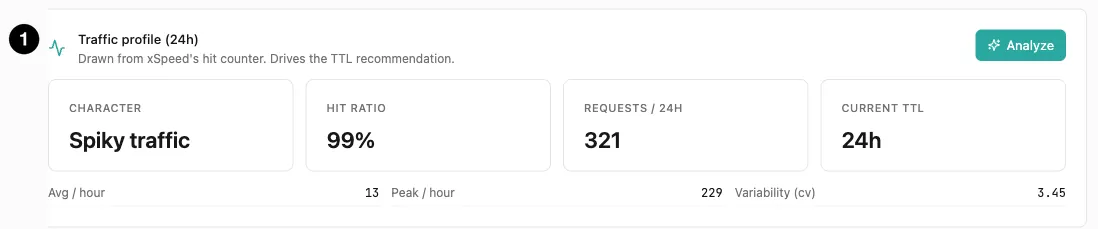
- Traffic profile (24h) — what xSpeed sees, with Analyze to re-profile.
Settings at a glance
This panel has no stored settings — it’s an advisor. Everything here is a reading or an action:
| Control | What it does |
|---|---|
| Analyze | Re-profiles your traffic and produces a fresh recommendation. |
| Apply to Cache | Writes the recommended TTL into Page Cache. |
| Recommendation | The suggested lifetime, the delta from current, and the reasoning. |
How it works
Click Analyze and xSpeed reads the last 24 hours from its hit counter, characterises the pattern, and produces a recommended lifetime with a rationale. Apply to Cache then writes that number into Page Cache — nothing else changes, and your cached pages are never touched.
Two safety principles make this trustworthy, and both are worth knowing before you rely on it:
- A heuristic computes the number; the AI only explains it. The recommended hours come from a transparent rule based on your traffic. If you’ve connected an AI Provider, it writes the human-readable reason — and nothing else. The AI cannot move the number.
- The result is always clamped to 1–168 hours. Even a wildly wrong input can’t produce an unsafe lifetime.
Nothing is applied automatically. A recommendation sits there until you choose to act on it.
Reading the traffic profile
The top card shows what xSpeed sees over the last 24 hours:
| Metric | Meaning |
|---|---|
| Character | A one-word summary of your traffic. This drives the recommendation. |
| Hit ratio | Share of requests served from cache. |
| Requests / 24h | Total requests in the window. |
| Current TTL | Your Page Cache’s lifetime right now. |
| Avg / hour | Mean hourly request count. |
| Peak / hour | Busiest single hour. |
| Variability (cv) | How evenly traffic is spread. Around 1 is ordinary; higher means spiky. |
Character is the one that matters, and it’s one of five values:
| Character | What it means |
|---|---|
| Low traffic | Too little data for a confident recommendation. |
| Cold cache | Traffic exists but the hit ratio is poor. |
| Spiky | Bursty — quiet stretches punctuated by heavy hours. |
| Stable, warm | Steady traffic with a healthy hit ratio. The ideal. |
| Normal | Everything else. |
💡 Variability is the interesting number. It compares your peak hour against your average. A site averaging 13 requests an hour with a 229-request peak has a cv far above 1 (3.45 in the screenshot above) and is classified spiky — and a spiky site wants a different lifetime than a steady one, because its cached pages need to survive the quiet stretches between bursts.
The recommendation

- Source label — whether the rationale came from the heuristic or your AI provider.
- Recommended TTL — with how it compares to your current setting.
- Apply to Cache — writes the number into Page Cache.
After Analyze, a card appears with the suggested lifetime, the change from your current setting, and the reasoning. For example, on a spiky site:
24 hours TTL · No change — “Traffic is spiky — a moderate TTL keeps peak-hour pages reusable without holding content past its useful life during quiet hours.”
If you’ve connected an AI Provider, the rationale is AI-written. If not, xSpeed uses a built-in explanation and labels the card Heuristic recommendation. Either way the recommended number is identical — the AI upgrades the prose, not the maths.
“No change” is a perfectly good outcome. It means your current lifetime already suits your traffic.
⚠️ The Apply to Cache button is easy to miss. It sits at the top-right of the recommendation card and renders in a very low-contrast style against the card’s pale background — callout 3 above marks where it is.