How to add cache rules and bypasses
Override cache behaviour per URL, post type, category, tag or author — and stop your maintenance screen being cached and served after the site goes live.
Page Cache gives you one lifetime and a list of exclusions, which covers most sites. This tab handles the cases it can’t: content that needs different treatment based on what it is rather than where it lives, and the specific hazard of caching a maintenance screen.
Where to find it
- In your WordPress admin, click xSpeed Cache in the left menu.
- In the xSpeed Cache sidebar, open the Cache group.
- Click the Advanced Cache card, then the Rules & bypass tab.
Shortcut: open
wp-admin/admin.php?page=xspeed#/cache/cache-coverage/rulesdirectly.⭐ The features on this tab are part of xSpeed Pro.
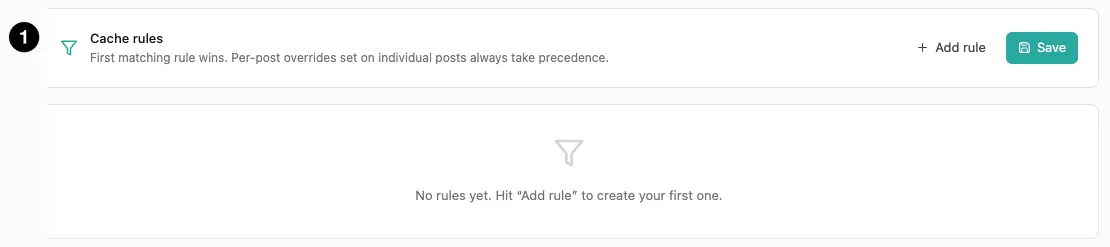
- Cache rules — Add rule to create one, Save to persist.
Settings at a glance
| Setting | Default | What it does |
|---|---|---|
| Cache rules | None | Bypass or override expiry per URL, post type, category, tag, or author. |
| Enable maintenance-aware caching | Off | Skip caching during maintenance, purge when the site goes live. |
How it works
Both features change whether and how long a page is cached, rather than caching a new request type. Cache rules do it by condition — what the content is. Maintenance-aware caching does it by site state — whether you’re currently in maintenance mode.
Cache rules
Each rule has a condition and an action. When a page is about to be cached, xSpeed walks your rules and applies the first that matches.
Conditions can target:
| Match by | Example use |
|---|---|
| URL | A specific path or pattern |
| Post type | Every product, or a custom type |
| Category | Everything in News |
| Tag | Everything tagged live |
| Author | One writer’s posts |
Actions are either bypass the cache entirely for matching pages, or override the expiry with a different lifetime.
Precedence: what wins
Three things can decide a page’s caching, and they resolve in a strict order. This is where surprises come from:
- Per-post overrides win. xSpeed Free adds a meta box to individual posts. If a post carries its own setting, it beats every rule here — the rules engine checks for it first and defers.
- Then the first matching rule. Rules are evaluated top to bottom; later rules aren’t consulted.
- Then the Page Cache default.
Two consequences. Order rules specific-first — a broad rule at the top shadows every narrower rule beneath it. And if a rule seems ignored on one particular post, check that post’s own meta box before debugging the rule.
💡 Rules complement Free’s per-post controls, they don’t replace them. Per-post settings stay authoritative for the posts that use them; rules cover everything else in bulk.
When to reach for a rule
- A page that must always be fresh — a status page, live scoreboard, dashboard: bypass the cache for its URL.
- A post type that shouldn’t be cached — anything personalised or transactional.
- Evergreen content — documentation that could cache far longer than your site default.
- A time-sensitive section — a breaking news category on a much shorter expiry.
For anything that must never be cached site-wide, the exclusion lists in Page Cache are simpler and checked earlier. Reach for rules when you need conditions those lists can’t express — post type, taxonomy, author.
Maintenance-aware caching
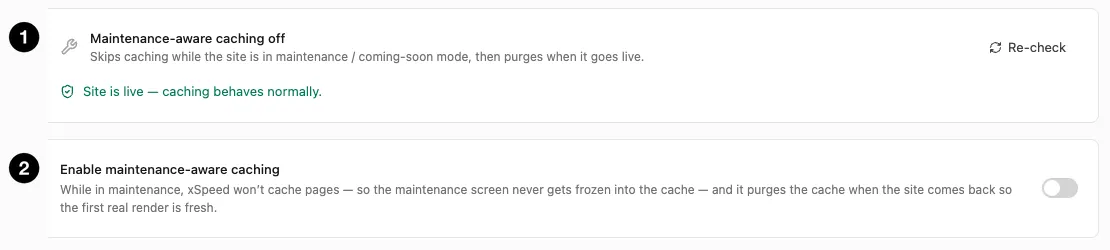
- Status — whether the site is currently in maintenance, with Re-check.
- Enable maintenance-aware caching — the master switch.
There’s a specific, nasty failure this prevents. You put the site into maintenance mode, the page cache dutifully saves the “we’ll be back soon” screen, you finish your work and go live — and visitors keep seeing the maintenance notice, because it’s cached.
A page cache doesn’t know why a page looks the way it does. During maintenance your site returns a holding screen, and as far as the cache is concerned that’s simply what your homepage is now. Then you go live, the site works perfectly, but the cached copy is still the maintenance screen — and with the default 7-day Page Cache lifetime it could stay that way a long time.
Worse, you won’t see it yourself: you’re logged in, so you’re served a fresh page and everything looks fine. It’s your logged-out visitors who are stuck.
What it does
Two protections, covering both ends of the maintenance window:
- While maintenance is on, nothing is written to the cache. The maintenance screen is never saved, so it can’t be served later.
- When maintenance switches off, the cache is purged once. Anything cached before or during the window is cleared, so the first real render after going live is fresh.
The purge fires on the transition — the module tracks whether maintenance was previously active specifically so it can detect the switch back and purge exactly once, rather than repeatedly.
The status card shows whether the site is currently in maintenance or coming-soon mode, with Re-check to re-run detection.
⚠️ Turn this on before you need it. It protects a moment you can’t easily undo — once the maintenance screen is cached and you’ve gone live, you’re relying on noticing and purging manually. Enabling it in advance costs nothing while the site is live.