How to lazy-load images and video
Stop loading media the visitor may never scroll to — while keeping your hero image eager so your Largest Contentful Paint doesn't suffer.
A visitor who reads your first paragraph and leaves has, by default, downloaded every image on the page. Lazy loading defers offscreen media until it’s actually needed, so the initial load carries only what’s visible. Unlike most settings in this group, its main toggles are already on — the tuning below is about protecting the images that should load immediately.
Where to find it
- In your WordPress admin, click xSpeed Cache in the left menu.
- In the xSpeed Cache sidebar, open the Optimization group.
- Click the Media Optimization card, then the Lazy Loading tab.
Shortcut: open
wp-admin/admin.php?page=xspeed#/performance/lazydirectly.✅ This tab is part of xSpeed Cache (Free).
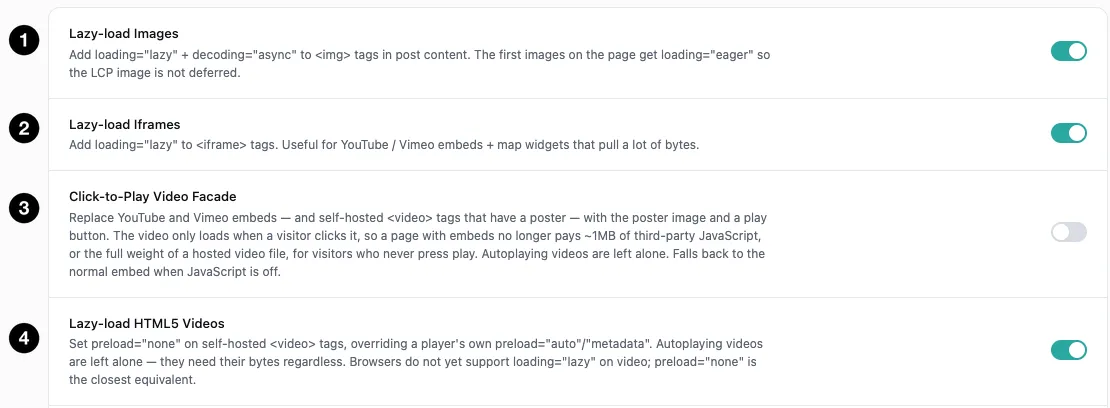
- Lazy-load Images — defer offscreen images.
- Lazy-load Iframes — defer embeds and map widgets.
- Click-to-Play Video Facade — replace embeds with a poster.
- Lazy-load HTML5 Videos — stop self-hosted video preloading.
Settings at a glance
| Setting | Default | What it does |
|---|---|---|
| Lazy-load Images | On | Add loading="lazy" and decoding="async" to post images. |
| Lazy-load Iframes | On | Add loading="lazy" to iframes. |
| Click-to-Play Video Facade | Off | Replace YouTube/Vimeo embeds, and self-hosted videos that have a poster, with a poster and play button. |
| Lazy-load HTML5 Videos | On | Set preload="none" on self-hosted video. |
| Lazy-load Background Images | Off | Hold back background images set in an element’s inline style until it nears the screen. |
| Eager-load First N Images | 1 | How many top images — and background images — load eagerly. Range 0–10. |
| Add Missing Image Dimensions | On | Inject width/height from the media library. |
| Excluded Images | Empty | Substring patterns exempt from lazy-loading. |
How it works
Lazy loading uses the browser’s own loading="lazy" attribute rather than JavaScript, so there’s no script to load and nothing to break when JavaScript fails. The browser decides when an element is close enough to the viewport to fetch.
Images also get decoding="async", which lets the browser decode them off the main thread instead of blocking rendering.
The first images on the page get loading="eager" instead — that’s the Eager-load First N Images setting below, and it’s what stops lazy loading from hurting the metric it’s supposed to help.
The four media types
Lazy-load Images (on) adds loading="lazy" and decoding="async" to images in post content.
Lazy-load Iframes (on) does the same for iframes. This matters more than it sounds — a YouTube or Vimeo embed, or a map widget, pulls a lot of bytes, and a page with three embeds is downloading three third-party players whether or not anyone watches.
Click-to-Play Video Facade (off) goes further: it replaces YouTube and Vimeo embeds — and self-hosted <video> tags that have a poster — with a poster image and a play button, and only loads the real video when someone clicks. A page with embeds stops paying roughly 1 MB of third-party JavaScript up front, and a self-hosted video stops costing its full file weight for visitors who never press play. A self-hosted video without a poster is left as it is, since there’d be nothing to show in its place.
Two caveats. Autoplaying videos are left alone, since a facade would defeat the point. And it falls back to the normal embed when JavaScript is off, so nobody gets a dead poster.
Lazy-load HTML5 Videos (on) sets preload="none" on self-hosted <video> tags, overriding a player’s own preload="auto" or "metadata". Without it, a browser may fetch a chunk — or all — of a video nobody plays. Autoplaying videos are again left alone; they need their bytes.
💡 Why video needs its own setting: browsers don’t support
loading="lazy"on<video>at all.preload="none"is the closest equivalent, which is why this is a separate toggle rather than part of the images one.
Protecting your hero image
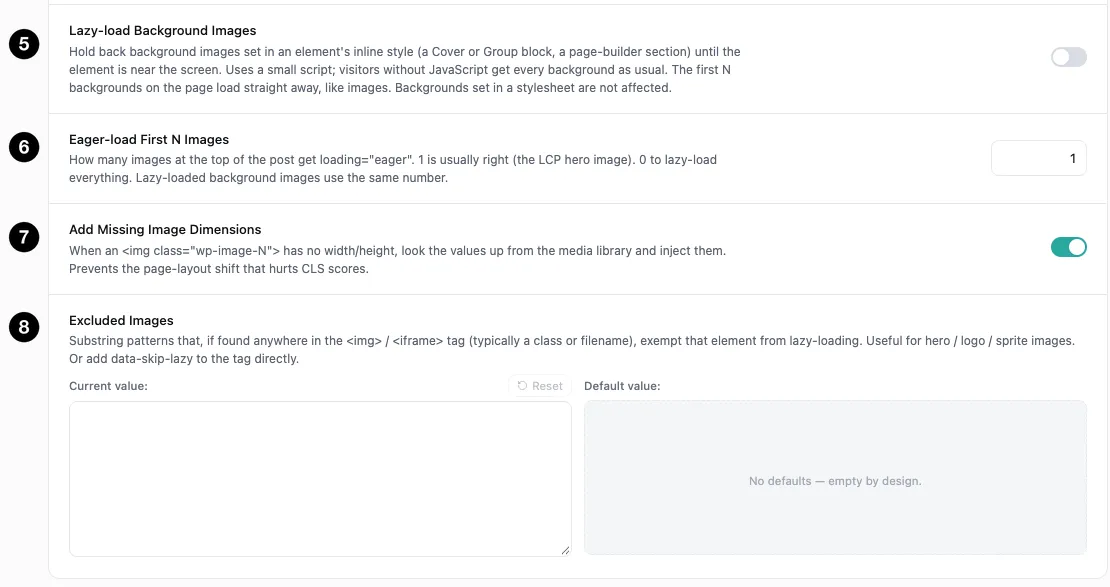
- Lazy-load Background Images — defer inline-style backgrounds.
- Eager-load First N Images — how many top images skip lazy-loading.
- Add Missing Image Dimensions — prevent layout shift.
- Excluded Images — patterns exempt from lazy-loading.
Lazy-load Background Images (off) covers the images that aren’t <img> tags at all: a background set in an element’s inline style — a Cover block, a Group block, a page-builder section. Each one is held back until its element nears the screen.
Two limits worth knowing. It uses a small script, so visitors without JavaScript get every background as usual. And it only sees backgrounds in inline styles — a background declared in a stylesheet is not affected, because xSpeed can’t know which element it will land on. The first few backgrounds on the page load straight away, using the same count as the images setting below.
Eager-load First N Images defaults to 1, range 0–10, and this is the setting that keeps lazy loading safe.
Your Largest Contentful Paint is usually the big image at the top of the page. Lazy-loading it would delay the exact element the metric measures — you’d make your score worse while believing you’d improved it. Eager-loading the first image prevents that, and 1 is usually right, because most layouts have a single hero.
Raise it if your design puts several images above the fold. Set it to 0 only if your pages genuinely have no image near the top.
Add Missing Image Dimensions (on) looks up width and height from the media library when an <img> doesn’t declare them, and injects the values. That reserves the right amount of space before the image arrives, so the page doesn’t jump as it loads — which is what Cumulative Layout Shift measures. Lazy loading makes layout shift more likely, because images arrive later, so this pairs with it deliberately.
Excluded Images takes substring patterns matched against the <img> or <iframe> tag — typically a class or filename. Anything matching is exempt from lazy-loading. Use it for logos, sprite images, or anything that must be present immediately. Individual tags can also opt out directly with data-skip-lazy.