How to compress your responses
Shrink everything your server sends over the wire — GZIP for universal support, Brotli for better ratios — and understand why your host may already be doing it for you.
Every byte your server sends has to cross a network. Compression shrinks HTML, CSS and JavaScript before they leave — often to a quarter of their original size — and every browser has supported it for decades. This panel controls which compression your site uses, and tells you whether your server is already handling it.
Where to find it
- In your WordPress admin, click xSpeed Cache in the left menu.
- In the xSpeed Cache sidebar, open the Optimization group.
- Click the Compression card.
Shortcut: open
wp-admin/admin.php?page=xspeed#/performance/gzipdirectly.✅ This panel is part of xSpeed Cache (Free). Its Brotli tab is ⭐ Pro.
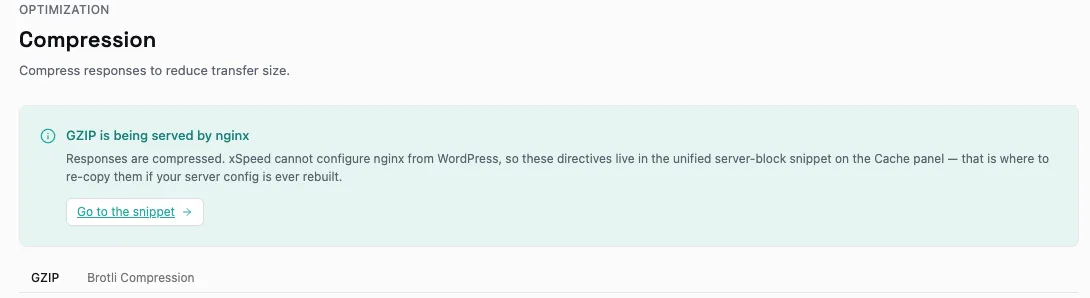
Tabs on this panel
| Tab | Feature | Tier | Guide |
|---|---|---|---|
| GZIP | Universal compression, supported everywhere | Free | How to enable GZIP compression |
| Brotli Compression | Better ratios, needs a server module | ⭐ Pro | How to enable Brotli compression |
Each tab has its own address, so you can link straight to one:
| Tab | URL |
|---|---|
| GZIP | #/performance/gzip |
| Brotli Compression | #/performance/gzip/brotli |
Which one should you use?
They aren’t alternatives — you generally want both, because they cover different browsers and different situations.
| GZIP | Brotli | |
|---|---|---|
| Browser support | Universal, for decades | All modern browsers |
| Compression ratio | Good | Better, typically 15–20% smaller |
| Server requirement | Essentially always available | Needs mod_brotli, ngx_brotli, or LiteSpeed |
| Tier | Free | ⭐ Pro |
Serve both and each visitor’s browser negotiates the best one it supports, falling back to GZIP where Brotli isn’t available. Brotli alone would leave older clients uncompressed.
Read the status notice first
Before changing anything, look at the notice at the top of the panel. On many hosts it will say something like “GZIP is being served by nginx” — and if it does, the toggle below is largely beside the point. Your server is already compressing everything, and xSpeed can’t configure nginx from WordPress.
That’s not a fault; it’s the better arrangement. Compression at the server layer is faster than compression in PHP. The panel tells you when it’s already handled so you don’t go looking for a problem that doesn’t exist.
Where your server isn’t compressing — some Apache setups, some shared hosts — the toggle does real work.
💡 On nginx, xSpeed cannot write your server config. The necessary directives ship in the unified server-block snippet on the Page Cache panel instead. If you rebuild your server config, re-copy that snippet.