How to crawl your sitemap
Crawl your sitemap on a schedule so every page is cached before a visitor asks for it — with a batch size that keeps the crawl polite to your server.
The first visitor to any uncached page waits while WordPress builds it. Crawl Now removes that penalty across your whole site: it reads your sitemap and requests each URL in the background, so the cache is already warm when a real person arrives. It’s the broadest of the three warming tools and the only one that’s free.
Where to find it
- In your WordPress admin, click xSpeed Cache in the left menu.
- In the xSpeed Cache sidebar, open the Cache group.
- Click the Preloader card, then the Crawl Now tab.
Shortcut: open
wp-admin/admin.php?page=xspeed#/cache/preloaderdirectly.✅ This tab is part of xSpeed Cache (Free).

- Crawl status — Ready, in progress, or finished.
- Start now — trigger a crawl immediately, whatever the schedule says.
Settings at a glance
| Setting | Default | What it does |
|---|---|---|
| Enable Preloader | Off | Master switch for scheduled crawling. |
| Schedule | Manual | How often a fresh crawl starts. |
| Batch Size | 5 | URLs warmed per cron tick. Range 1–50. |
| Sitemap URL | Blank (auto-detect) | Override the detected sitemap. |
| Warm new content immediately | On | Fetch a post once as soon as it’s published. |
| Re-warm after comments | Off | Re-fetch a page after a comment purges it. |
How it works
The crawler reads your sitemap, collects the URLs it lists, and requests them a few at a time in the background. Each request is an ordinary page view as far as WordPress is concerned, so it fills the Page Cache exactly as a real visitor would — the difference is that nobody is waiting on it.
Crawling runs through WP-Cron in small batches rather than all at once. That’s deliberate: a burst of hundreds of simultaneous requests would spike your server load, which is the opposite of what a performance plugin should do.
The status area at the top shows the current state — Ready, in progress with a count, or finished — and Start now triggers a crawl immediately regardless of the schedule.
Settings
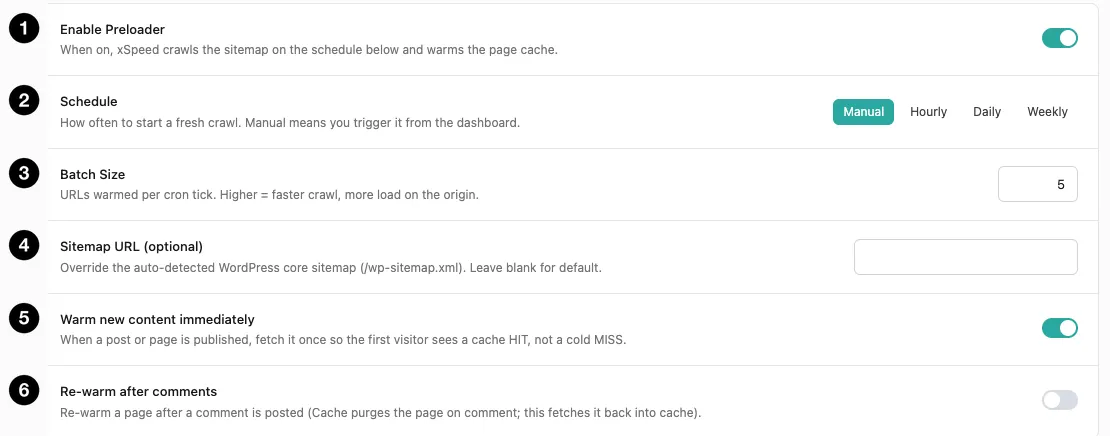
-
Enable Preloader — off by default. Turn it on to crawl on a schedule. The settings below only take effect once this is on; they’re dependent fields.
-
Schedule — how often a fresh crawl begins:
Option Best for Manual You trigger crawls yourself with Start now. The default. Hourly Busy sites that publish frequently or purge often. Daily A sensible default for most active sites. Weekly Mostly-static sites where pages rarely change. -
Batch Size — how many URLs are warmed per cron tick, from 1 to 50, default 5. This is the load dial. Higher finishes the crawl sooner but puts more simultaneous work on your origin; lower is gentler but takes longer. On shared hosting, leave it low.
-
Sitemap URL (optional) — blank by default, which means xSpeed uses WordPress core’s own sitemap at
/wp-sitemap.xml. Set this only if a plugin publishes your sitemap elsewhere (Yoast and Rank Math commonly use/sitemap_index.xml). -
Warm new content immediately — on by default, and worth keeping on. The moment you publish a post or page, xSpeed fetches it once so the first real reader gets a cache
HITinstead of a coldMISS. This matters exactly when it matters most: the minutes right after you publish and share a link. -
Re-warm after comments — off by default. When someone comments, Page Cache purges that page so the new comment shows. With this on, xSpeed immediately fetches it back into cache rather than leaving the next visitor to rebuild it. Useful on posts with busy comment threads; unnecessary if your site has few comments.
⚠️ If nothing is being warmed, check your firewall before the settings. Some rule sets — 7G and 8G style protections especially — refuse requests by user agent, and the warmer’s requests look exactly like the kind they block. The panel says so when it happens: “Your server is blocking the xSpeed cache warmer”, with the HTTP status it got back. Pages then stay cold until the rule is relaxed for your own server’s requests.
⚠️ Batch Size is the setting that can hurt you. It controls how much simultaneous work lands on your origin. Raising it to finish a crawl faster is exactly the wrong move on constrained hosting — a slow crawl costs you nothing, a hammered server costs your visitors.