How to read your cache diagnostics
Check the plumbing caching depends on — PHP version, the drop-in, the WP_CACHE constant, directory permissions — and get the server snippet your setup is missing.
Caching depends on several things being true at once: a modern PHP, a writable directory, a drop-in in the right place, a constant defined in wp-config.php. If any one is missing, caching quietly does less than you think. The Overview tab checks each and tells you which is wrong.
Where to find it
- In your WordPress admin, click xSpeed Cache in the left menu.
- In the xSpeed Cache sidebar, open the Health & insights group.
- Click the Health card — Overview is the default tab.
Shortcut: open
wp-admin/admin.php?page=xspeed#/insights/healthdirectly.✅ This tab is part of xSpeed Cache (Free).

- Hit ratio · 24h — with a sparkline of recent history.
💡 This counts requests that reached your server. If a CDN or Cloudflare sits in front, edge-served requests never arrive here and aren’t counted — which is why this figure can differ from your analytics, and why it is described as origin-layer only.
Settings at a glance
This tab has no settings — it’s a read-only diagnostic report:
| Element | What it shows |
|---|---|
| Hit ratio · 24h | Percentage served from cache, with hit and miss counts. |
| Diagnostics list | Pass/warn status for each caching prerequisite. |
| Recommendations | ⭐ Pro — ranked, rule-based suggestions with an Apply button. |
| Server config snippet | The nginx or Apache config your setup needs. |
How it works
Every item is checked live when the panel loads — nothing here is cached or remembered from a previous visit. A coloured dot marks each: green for satisfied, amber for something needing attention, grey for informational.
The hit ratio at the top is drawn from the same 24-hour counters that Page Cache reports and Adaptive Cache profiles, so all three agree.
Recommendations
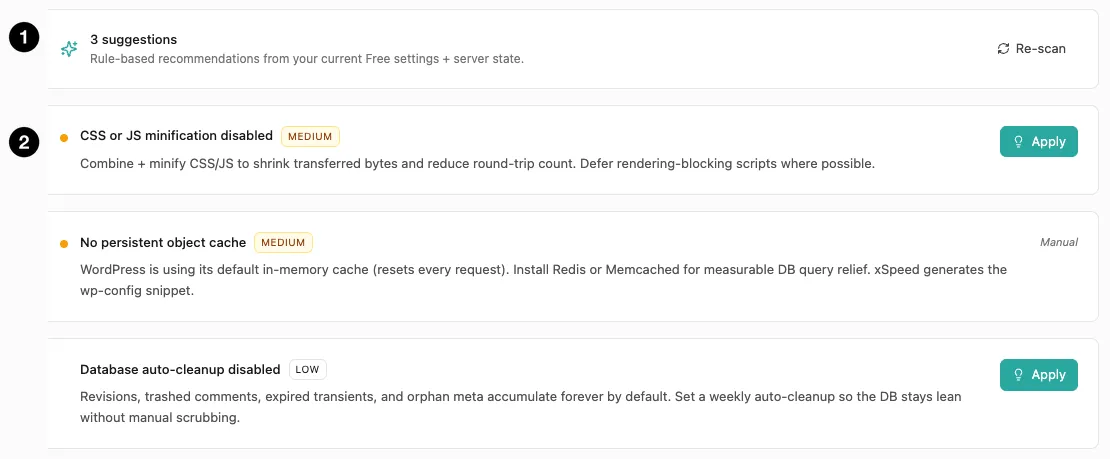
- Suggestion count — with Re-scan to re-evaluate.
- Individual suggestions — each with a severity and an action.
⭐ Recommendations is part of xSpeed Pro. Without a licence this card shows a locked preview; everything else on this tab is Free.
A rule-based engine audits your current settings plus your server state and surfaces the changes most likely to improve things. Each carries a severity — Medium, Low — and most have an Apply button that makes the change for you.
Some are marked Manual instead. Those need something xSpeed can’t do from WordPress — installing Redis, for instance, is a server task, so the panel explains it rather than offering a button.
This is the most useful thing on the tab for most people. Rather than reading every panel and deciding what matters, you get a short ranked list derived from your actual configuration.
💡 Re-scan after making changes. The suggestions reflect state at scan time, so a recommendation you’ve already acted on will linger until you re-scan.
💡 It only appears on this tab. The summary bar above the tab strip follows you to Visitors and PageSpeed; the recommendations do not — switch tabs and they’re gone until you come back here.
The diagnostics list
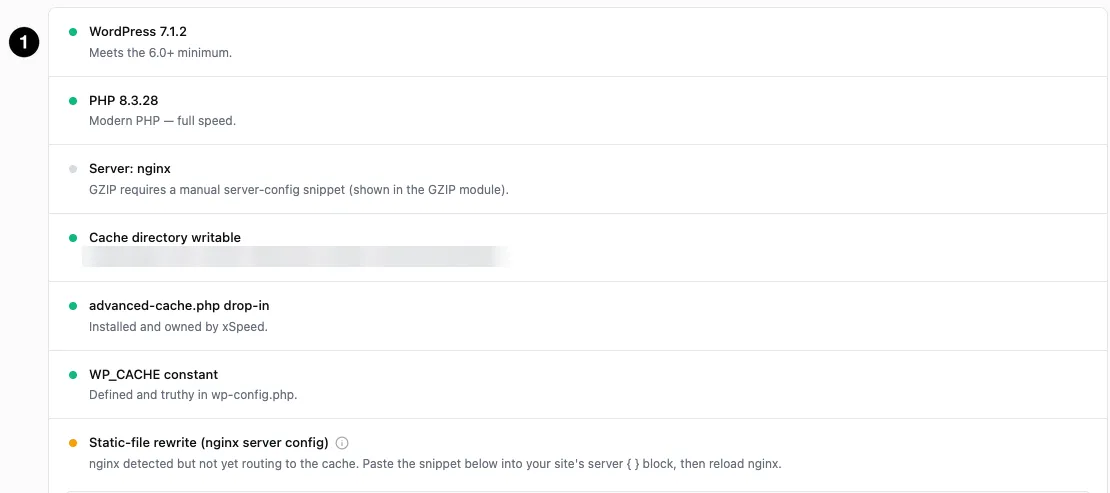
- Diagnostics — each prerequisite with its current status.
| Check | What it means |
|---|---|
| WordPress version | Meets the 6.0+ minimum xSpeed requires. |
| PHP version | Modern PHP runs meaningfully faster. |
| Server | Which server was detected — this determines what xSpeed can configure automatically. |
| Cache directory writable | Without write access, nothing can be cached at all. |
| advanced-cache.php drop-in | The file that serves cached pages before WordPress loads. |
| WP_CACHE constant | Must be defined and truthy in wp-config.php, or the drop-in is never used. |
| Static-file rewrite | Whether your server routes directly to cached files, skipping PHP. |
| Permalinks | Page caching keys on the request path, so anything but Plain is required. |
| Edge cache being told what not to store | Whether a CDN in front of you is being sent do-not-store headers for pages xSpeed refuses to cache. |
| No cache-poisoning cookies | Whether anonymous pages are free of cookies that would make a shared copy wrong. |
| Caching plugin conflicts | Whether another plugin is also trying to cache pages. |
Three of these are worth understanding, because they form a chain: the advanced-cache.php drop-in, the WP_CACHE constant and the static-file rewrite.
The drop-in and the constant work as a pair. advanced-cache.php is what serves a cached page before WordPress fully loads — but WordPress only looks for it when WP_CACHE is true. Either one missing and page caching silently doesn’t happen, even with everything switched on in the settings.
Static-file rewrite is the optional last step. By default the drop-in serves cached HTML through PHP, which is already fast. With a server rewrite, your server finds the cached file itself and never invokes PHP — faster still.
This check now tells the cases apart rather than showing a blanket amber, and the wording matters. In xSpeed’s Diagnostics list the row keeps its title — Static-file rewrite (nginx server config), or Cache serving (LiteSpeed) — and the detail line underneath changes; WordPress’s Tools → Site Health reports the same states under its own labels. Either way, this is what each one means:
| What it says | What it means |
|---|---|
| xSpeed nginx static rewrite is active | Green. nginx is serving hits directly, PHP bypassed, nothing to do. |
| nginx detected but not yet routing to the cache | The snippet isn’t in your server block yet — paste it and reload nginx. |
| xSpeed could not verify the nginx static rewrite | The check itself didn’t complete. This is not evidence your config is wrong; if you’ve already pasted the snippet it may well be working. The reason is shown. |
| Serving cache hits through PHP (pages contain nonces) | Your config is correct, but these pages carry nonces. A statically served file runs no PHP and could never refresh them, so PHP serves them deliberately. |
| Serving cache hits through PHP (LiteSpeed) | Caching works and every hit is tagged and counted. LiteSpeed’s .htaccess engine can’t tag or log statically served files — see LiteSpeed’s static fast path if you’d rather trade that for speed. |
A site that is working correctly no longer gets told to paste in a snippet it already has.
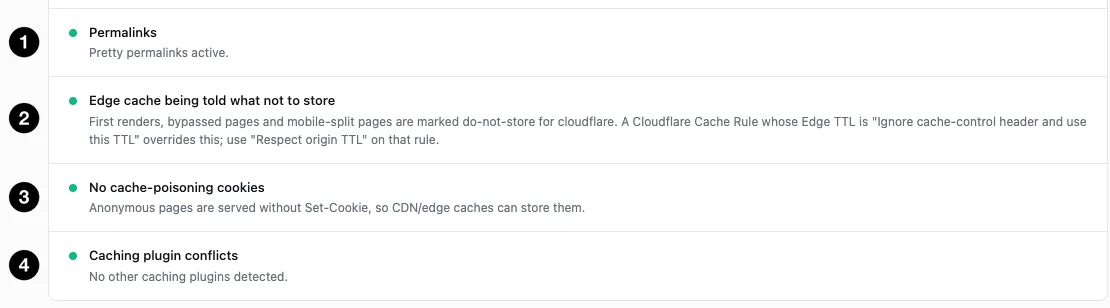
- Permalinks — anything other than Plain.
- Edge cache being told what not to store — what a CDN in front of you is being sent.
- No cache-poisoning cookies — whether anonymous pages carry cookies that would make a shared copy wrong.
- Caching plugin conflicts — whether something else is caching too.
Edge cache being told what not to store reports the other half of the edge setting: which provider was detected, and that first renders, bypassed pages and mobile-split pages are being marked do-not-store for it. It also names the case it can’t control — a Cloudflare Cache Rule whose Edge TTL is set to “Ignore cache-control header and use this TTL” overrides those headers, and that rule has to be changed at Cloudflare.
The server config snippet
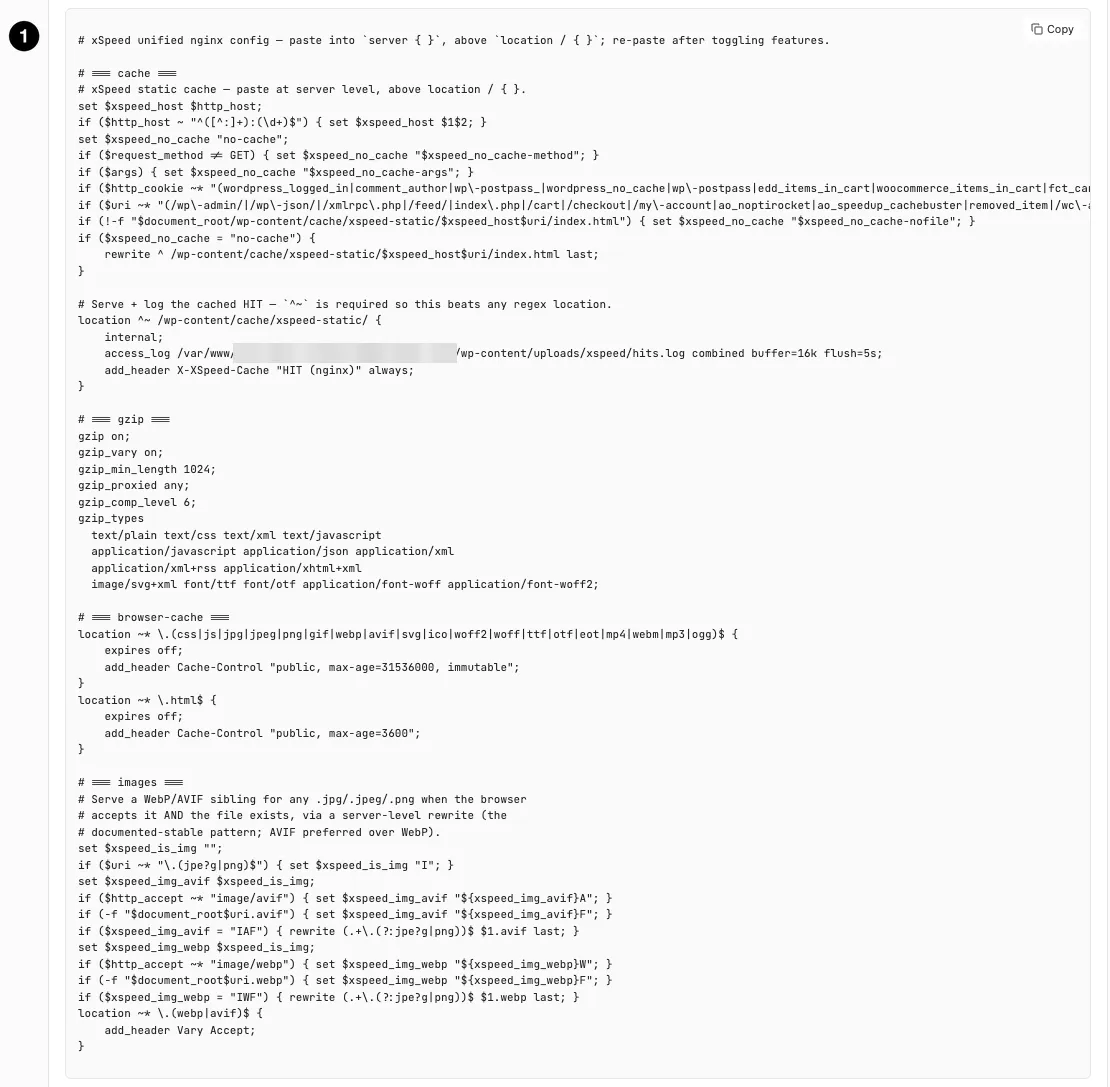
- Server config — the unified snippet for your server, with Copy.
When your server needs manual configuration, the full snippet appears here with a copy button. It’s unified — one block covering static-file rewrites, compression directives, and cache headers together, rather than separate snippets per feature.
That matters for a practical reason. Several panels (GZIP, Browser Cache, Page Cache) each need nginx directives, and this is where they’re gathered. You paste once rather than hunting through panels.
⚠️ Re-copy the snippet after toggling features. The block is generated from your current settings, so enabling something that needs a directive changes it. The panel says as much — re-copy after toggling features, and reload nginx afterwards.