How to remove unused CSS
Most themes ship a stylesheet where any given page uses a fraction of the rules. Prune the rest per URL — with a safelist and real-visitor learning to keep it honest.
A page-builder theme can ship hundreds of kilobytes of CSS covering every block, layout and widget it supports — while any given page uses a small fraction of it. Unused CSS works out which rules a URL actually needs and serves only those. It’s typically the single biggest transfer reduction available on this panel, and also the one that most deserves checking before you trust it.
Where to find it
- In your WordPress admin, click xSpeed Cache in the left menu.
- In the xSpeed Cache sidebar, open the Optimization group.
- Click the CSS & JavaScript card, then the Unused CSS tab.
Shortcut: open
wp-admin/admin.php?page=xspeed#/performance/minify/unuseddirectly.⭐ This tab is part of xSpeed Pro.
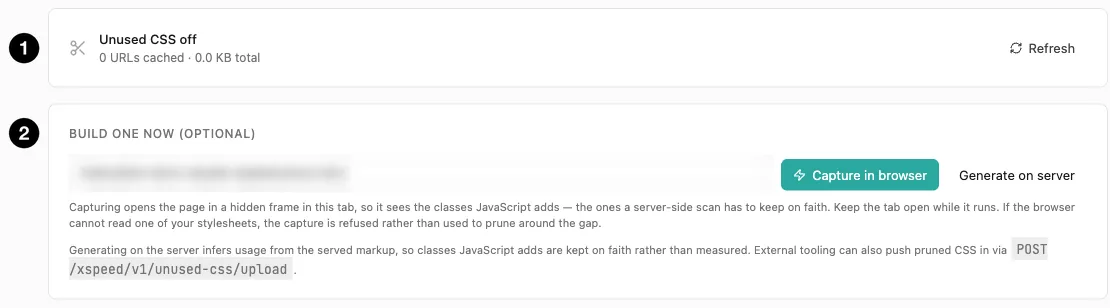
- Status — whether it’s on, how many URLs are cached, and total size.
- Build one now (optional) — capture in the browser, or generate on the server, instead of waiting for an automatic build.
Settings at a glance
| Setting | Default | What it does |
|---|---|---|
| Enable Unused CSS | Off | Replace stylesheets with pruned inline CSS. |
| Learn from real visitors | Off | Refine the analysis using real page views. |
| Rendering service URL | Empty | A self-hosted renderer to measure pages with. Empty = rendering is brokered through the xSpeed Hub. |
| Rendering service token | Empty | Bearer token for that service, when it requires one. |
| Never prune these selectors | Empty | Safelist of selector fragments to always keep. |
How it works
Analysis runs per URL, and stays that way deliberately. Critical CSS can hand one template’s build to every page that shares it, because it only adds CSS. Unused CSS replaces stylesheets, so a page served a template-mate’s build could paint its own components unstyled — every page earns its own entry.
Builds happen on their own. A visitor landing on a page with no pruned CSS queues one, and WordPress cron builds it a few minutes later — you don’t have to press anything. The button on the panel is for building a page right now instead of waiting. Entries rebuild themselves when your theme, a plugin, or a plugin version changes, so they don’t go stale as the site does — and Purge all leaves them alone, because they aren’t a render cache.
Builds are queued, not waited on. With rendering brokered through the Hub, a build is submitted as a job and collected a few minutes later rather than holding a cron run open. Nothing is stored and nothing counts as a failure while a job is out, and visitors keep getting exactly what they got before — the cached page, with the previous pruned CSS if it had any. The panel shows such an entry as queued. If the page is edited while its job is running, the finished result is thrown away and a fresh job submitted, because it measured the page as it was.
One render serves both features. When a page needs building for Unused CSS and Critical CSS at once, the render is paid for once and both take what they need from it.
A doubtful entry is refused, not trusted. An entry that’s stale, empty or implausibly small is set aside rather than used, so a bad build can’t strip every stylesheet from a page and leave it unstyled. The panel names the reason on the entry — generated against a different set of themes and plugins, too small to be a real stylesheet, implausibly small next to the CSS it replaced — and says what happens next: a fresh copy is queued, or it is built again when the page is edited or purged. Only one CSS strategy owns a page, too: where Unused CSS has a usable entry, Critical CSS stands down.
When enabled, each run of adjacent stylesheets is replaced, in place, by just that run’s pruned CSS. That “in place” detail matters more than it sounds: nothing moves relative to the inline blocks around it, so the cascade is preserved. CSS is order-sensitive, and a tool that reorders your styles will break things in ways that are miserable to debug. This one doesn’t.
A small run is inlined in a <style> block. A run over roughly 14 KB is written to a file instead — wp-content/cache/xspeed/ucss/<hash>.css — and linked, because half a megabyte of inline CSS in every HTML response is something no browser and no CDN can cache. The filename is a hash of the CSS itself, so identical output across pages collapses to one shared, cached file, and changed CSS is simply a different URL with nothing to purge. Those files sit under wp-content, so your CDN serves them like any other asset.
Some stylesheets are never touched, and knowing the list saves you time:
- Sheets marked
data-xspeed-keep - Sheets marked
data-no-optimize - Disabled sheets
- Sheets carrying an
integrityattribute - Cross-origin stylesheets
The integrity and cross-origin exclusions are structural: pruning a sheet with a subresource-integrity hash would invalidate it, and a cross-origin sheet isn’t xSpeed’s to rewrite.
Two ways to generate
Same choice as Critical CSS:
| Capture in browser | Generate on server | |
|---|---|---|
| How | Opens the page in a hidden frame in this tab and records which rules it actually uses | Has a real browser render the page — brokered by the Hub, or through your own Rendering service URL — and prunes from what it measured |
| Accuracy | Sees what JavaScript builds and what really renders, at your screen size | Also a real render |
| Needs | The tab kept open while it runs | Nothing — works headlessly |
| Fails when | A security plugin blocks framing | The render fails — reported, never swapped for a guess |
Capture in browser runs in your browser, so it needs the tab left open. Generate on server is the choice when your browser can’t frame the page. External tooling can also push pruned CSS in via the upload endpoint if you generate it in a build pipeline.
⚠️ A failed render is reported, not replaced with a guess. If a render fails on a licensed install, xSpeed won’t quietly fall back to reading the served markup. The failure shows on the panel, from WP-CLI and in the activity log, and automatic builds pause for a cooldown before trying again.
⚠️ A build refuses to measure a page that is already serving pruned CSS. The render asks for an unoptimized copy of the page; if what comes back still carries xSpeed’s own pruned output, something in front of the site — a CDN, a proxy, a host page cache — answered from its cache instead. Pruning can only remove rules, so building from that copy would lock the page into whatever an earlier build dropped, and no rebuild could ever heal it. Instead the build is refused, the page’s cached copy is purged, and the error says a cache in front of the site answered. If you see it repeatedly, exclude the site’s own loopback requests from that cache.
Settings
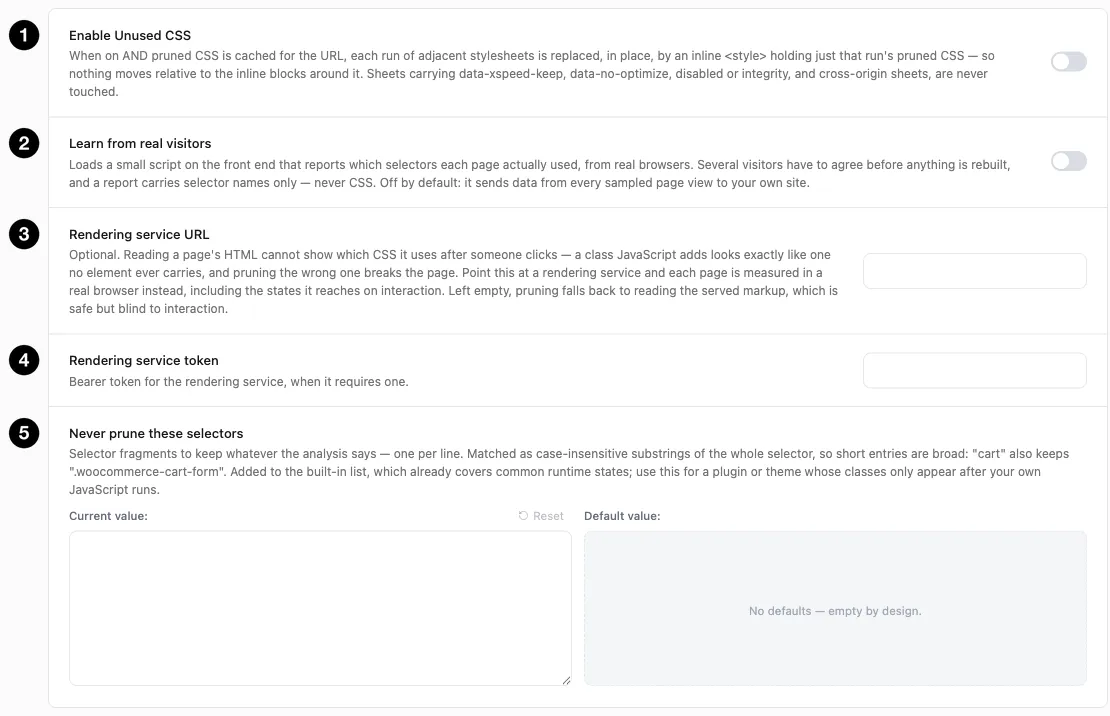
- Enable Unused CSS — the master switch.
- Learn from real visitors — refine using real page views.
- Rendering service URL — measure pages in a real browser instead of reading markup.
- Rendering service token — bearer token, if your service needs one.
- Never prune these selectors — the safelist.
Learn from real visitors
Off by default. It loads a small front-end script reporting which selectors each page actually uses, from real browsers. Reports carry selector names only — never CSS, and never visitor data.
The safety mechanism is worth understanding: several visitors have to agree before anything is rebuilt. One visitor’s session doesn’t rewrite your CSS. That guards against a single unusual page view — someone with an extension injecting markup, say — poisoning the analysis.
It samples every page view rather than a subset, and it’s a separate beacon from the Critical CSS fold beacon. They measure different questions: this one asks “what does this page use at all?”, the fold beacon asks “what paints first?”
Rendering service URL
The problem this solves is the same one the safelist exists for, attacked from the other side. Reading a page’s HTML cannot tell you what CSS it uses after someone clicks: a class JavaScript adds on interaction is missing from the served markup in exactly the way a class no element ever carries is missing. The two are indistinguishable, so pruning either keeps dead CSS or breaks a working control.
Point this at a rendering service and each page is opened in a real browser and measured for real — including the states it reaches on interaction — before anything is pruned.
You usually don’t need to set it. With an active licence, generation is brokered through the xSpeed Hub on its own — using your licence, so no Hub connection is required — and the credential that reaches the renderer stays on the Hub instead of on every install. Fill this in only to point at a self-hosted renderer, which takes precedence when set. Rendering service token is the bearer token for that service, if it needs one.
💡 Leaving it empty is the normal setup. The Hub brokers rendering for any licensed install, so there’s nothing to configure. What changed in this release is failure: a render that fails is now reported and builds pause briefly, rather than the page being quietly pruned from its markup instead — which lost accuracy on interactive states without telling anyone. The safelist below still covers the classes a render can’t reach.
Never prune these selectors
The safelist, and the setting that will save you. It takes selector fragments, one per line, matched as case-insensitive substrings of the whole selector. So short entries are broad — cart also keeps .woocommerce-cart-form.
There’s already a built-in list covering common runtime states. Use this field for classes a plugin or theme only adds after your own JavaScript runs — because static analysis can’t see them. A modal that gets .is-open on click, a menu that gets .active on scroll, a class applied by a third-party widget: all invisible to analysis, all pruned, all broken.
⚠️ This is where problems come from, and they’re not obvious. A page looks fine on load and breaks only when someone interacts — opens a menu, adds to cart, triggers a modal. Test those interactions after enabling, not just the initial render. When something breaks, add its class to the safelist rather than turning the feature off.
A sensible workflow
- Turn on Enable Unused CSS. Pages start building on their own as visitors reach them.
- Build your key templates now instead of waiting — homepage, a post, a page, and anything with interactive UI — then check them in a private window.
- Interact with everything — menus, modals, tabs, carts, accordions. This is the step people skip.
- Safelist anything that broke, then rebuild that page.
- Optionally enable real-visitor learning to refine over time.