How to get AI image suggestions
Let xSpeed profile your media library and recommend the right conversion formats and quality levels for the kind of images you actually have.
The right image settings depend on what’s actually in your library. A site full of photographs wants different quality levels from one full of screenshots and logos, where over-compression shows as soft edges and mushy text. Smart Image profiles your media library and recommends settings that match — then applies them into Image Optimization with one click.
Where to find it
- In your WordPress admin, click xSpeed Cache in the left menu.
- In the xSpeed Cache sidebar, open the Optimization group.
- Click the Media Optimization card, then the Smart Image tab.
Shortcut: open
wp-admin/admin.php?page=xspeed#/performance/lazy/smartdirectly.⭐ This tab is part of xSpeed Pro.
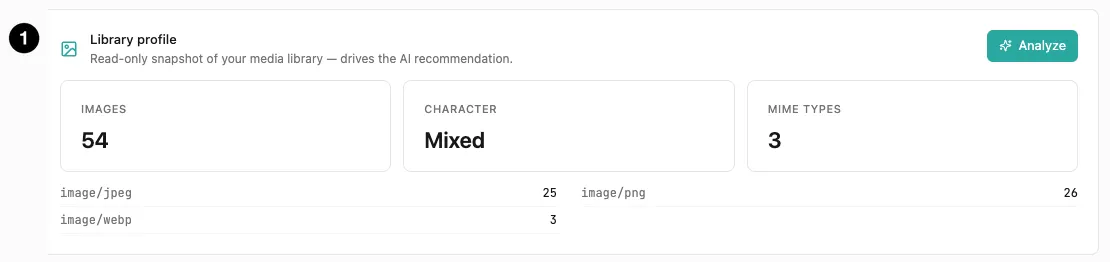
- Library profile — a read-only snapshot, with Analyze to refresh it.
Settings at a glance
Like Adaptive Cache, this tab is an advisor and stores no settings of its own:
| Control | What it does |
|---|---|
| Analyze | Re-profiles the library and produces a fresh recommendation. |
| Apply to Images | Writes the recommended settings into Image Optimization. |
| Recommendation | Suggested formats, quality levels, and the reasoning. |
How it works
Click Analyze and xSpeed reads a read-only snapshot of your media library — how many images, what MIME types, and what character they collectively have. From that it recommends whether to enable WebP and AVIF, and at what quality.
Nothing is applied automatically. The recommendation sits there until you press Apply to Images, which writes the values into the Image Optimization tab. Your images aren’t touched by this tab at all — it only changes settings.
Reading the profile
The profile card shows what xSpeed sees:
| Metric | Meaning |
|---|---|
| Images | Total count in the media library. |
| Character | A one-word summary of what kind of library it is. |
| MIME types | How many distinct formats, broken down by type and count. |
Character is what drives the recommendation. A library that’s mostly photographs tolerates more aggressive compression than one full of graphics, where compression artefacts around sharp edges and text are obvious.
The MIME breakdown underneath is worth reading on its own. A library of 54 images split 25 JPEG / 26 PNG / 3 WebP is a mixed library — and that split is itself informative. A large number of PNGs usually means screenshots, logos or diagrams rather than photographs, which is exactly the case where quality settings need care.
The recommendation

- Source label — heuristic, or AI-written if a provider is connected.
- Recommended settings — formats and quality levels.
- Apply to Images — writes them into Image Optimization.
The card gives four values — WebP on/off, AVIF on/off, and a quality level for each — plus a plain-English reason. For a mixed library it might say:
WebP On · AVIF On · WebP quality 85 · AVIF quality 65 — “Mixed library — both formats enabled at slightly higher quality so graphics don’t lose edges.”
Note that those quality numbers sit above the Image Optimization defaults of 82 and 60. That’s the recommendation doing its job: because the library contains a lot of PNGs, it nudges quality up so graphics and text keep their edges, accepting slightly larger files as the trade.
As with Adaptive Cache, the numbers come from a heuristic, not the model. Connect an AI Provider and the rationale is AI-written; without one you get a built-in explanation labelled Heuristic recommendation. The recommended values are the same either way.
⚠️ The Apply to Images button is easy to miss — it sits top-right of the recommendation card in a low-contrast style, marked 3 above. The same is true on Adaptive Cache.