How to serve assets from a CDN
Rewrite your image, font, CSS and JavaScript URLs to a pull-zone CDN so static assets are served from a location near each visitor instead of your origin.
Your server sits in one place. Your visitors don’t. A CDN keeps copies of your static assets — images, fonts, stylesheets, scripts — on servers around the world and serves each visitor from the nearest one. This panel rewrites your asset URLs to point at that CDN.
Where to find it
- In your WordPress admin, click xSpeed Cache in the left menu.
- In the xSpeed Cache sidebar, open the Network group.
- Click the CDN card.
Shortcut: open
wp-admin/admin.php?page=xspeed#/network/cdndirectly.✅ This panel is part of xSpeed Cache (Free).

- Enable CDN — the master switch.
- CDN URL — your CDN hostname, revealed once the switch is on.
Settings at a glance
| Setting | Default | What it does |
|---|---|---|
| Enable CDN | Off | Rewrite static asset URLs to the CDN hostname. |
| CDN URL | Empty | Your CDN hostname, e.g. cdn.example.com. |
| Included File Extensions | 19 types | Only URLs ending in these are rewritten. |
| Excluded Patterns | Empty | Glob patterns that stay on the origin. |
Only Enable CDN is shown at first. The other three declare dependsOn: enabled and are not rendered until the master switch is on — the screenshots below show the panel in its enabled state.
How it works
xSpeed rewrites asset URLs in your HTML from your own domain to the CDN hostname. A request that would have gone to yoursite.com/wp-content/uploads/hero.jpg goes to cdn.example.com/wp-content/uploads/hero.jpg instead.
Your CDN must be a pull zone configured to fetch from this site. That’s the one prerequisite, and it’s the step people miss. A pull zone works by requesting the file from your origin the first time someone asks for it, then caching it. You don’t upload anything — the CDN pulls on demand.
Set that up at your CDN provider first. BunnyCDN, KeyCDN, and most others call it a “pull zone” and ask for your site URL as the origin. Only once it’s serving your files should you point xSpeed at it.
⚠️ Rewriting URLs to a CDN that isn’t configured breaks every asset on your site. The browser requests images and stylesheets from a hostname that returns nothing. Verify your pull zone works — open
https://your-cdn-host/wp-content/uploads/some-image.jpgin a browser and confirm you get the image — before enabling this.
CDN URL
Your CDN hostname, e.g. cdn.example.com. https:// and trailing slashes are stripped automatically, so paste whatever your provider gives you and don’t worry about the exact form.
If this is empty, no rewriting happens at all even with the master switch on — the module returns the HTML unchanged when either the enable flag or the hostname is missing. That’s a deliberate safety, and it means an accidentally-enabled CDN with no hostname does nothing rather than breaking your site.
Included File Extensions
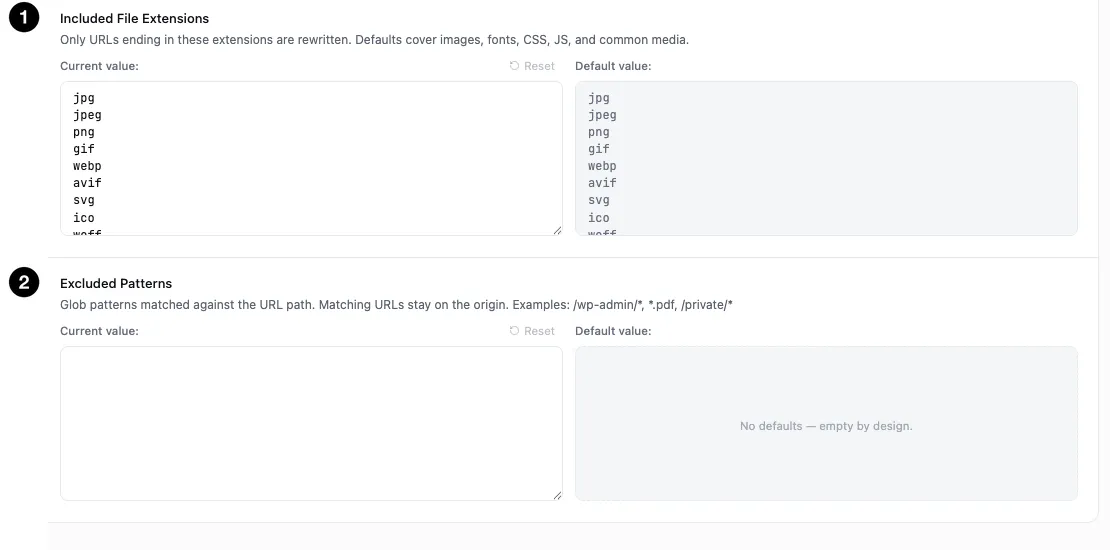
- Included File Extensions — the allow-list of what gets rewritten.
- Excluded Patterns — glob patterns that stay on the origin.
Only URLs ending in these extensions get rewritten. The defaults cover 19 types:
| Category | Extensions |
|---|---|
| Images | jpg jpeg png gif webp avif svg ico |
| Fonts | woff woff2 ttf otf eot |
| Code | css js |
| Media | mp4 webm mp3 ogg |
This is an allow-list, which is the safe design: anything not on it stays on your origin. That’s why your HTML, your REST API, and admin-ajax are never rewritten — they aren’t static files and shouldn’t be served from a CDN.
You’d only edit this to add a format your site serves that isn’t listed.
Excluded Patterns
Glob patterns matched against the URL path. Anything matching stays on your origin.
| Pattern | Effect |
|---|---|
/wp-admin/* | Nothing under wp-admin is rewritten |
*.pdf | PDFs stay on the origin |
/private/* | A protected directory stays put |
Useful when some assets shouldn’t leave your server — files behind access control, or anything a CDN would cache that you’d rather it didn’t.