xSpeed Cache Site MCP
The MCP server built into the xSpeed Cache plugin: connect an AI client directly to one WordPress site with a token or OAuth. To manage several sites through one connection, use xSpeed Hub MCP.
Looking for xSpeed Hub MCP? It is the recommended way to connect an AI assistant: one URL,
https://app.xspeedcache.com/xspeed/mcp, an OAuth sign-in, and every site you attached to the Hub behind it. See xSpeed Hub MCP.This page covers xSpeed Cache Site MCP: the server built into the xSpeed Cache plugin, at
https://your-site.com/xspeed/mcp. It connects an AI client to that one site. Use it for a single site without a Hub account, or for work the Hub does not expose, such as database cleanup.
MCP — the Model Context Protocol — lets an AI agent call tools on your behalf. Connect this site and you can ask Claude to purge the cache, check the hit ratio, or run a benchmark in plain language, instead of clicking through panels. This is also the most powerful thing you can hand an AI, so the panel is built around controlling exactly what it can do and revoking it quickly.
Where to find it
- In your WordPress admin, click xSpeed Cache in the left menu.
- In the xSpeed Cache sidebar, open the AI & agents group.
- Click the MCP card.
Shortcut: open
wp-admin/admin.php?page=xspeed#/ai-agents/mcpdirectly.✅ This panel is part of xSpeed Cache (Free).

- Status — with Refresh, Rotate and Disconnect.
Settings at a glance
| Control | What it does |
|---|---|
| Refresh | Re-check the connection state. |
| Rotate | Issue a new token, invalidating the old one. |
| Disconnect | Revoke access entirely. |
| Connection format | Four ways to give the details to your client. |
| Connect via xSpeed Hub | OAuth sign-in with no token to copy. |
How it works
Once connected, an AI agent authenticates with a token and calls xSpeed’s tools. The panel shows Connected along with the granted scopes — typically read, write.
The token travels in an Authorization header, which the panel notes means “it never lands in a URL or server log.” That matters: a token in a query string ends up in access logs, browser history and referrer headers. In a header it doesn’t.
Four ways to connect
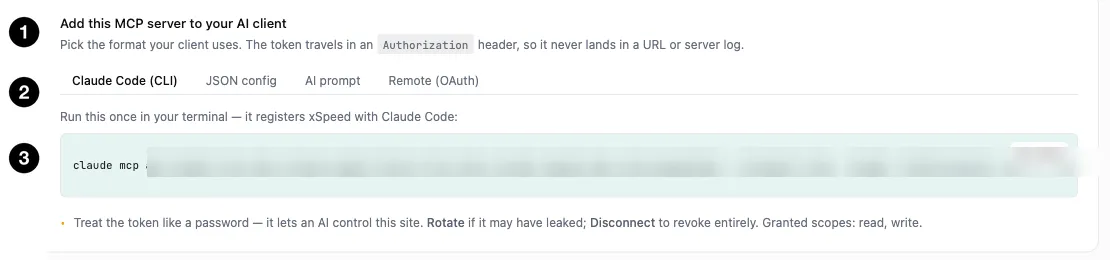
- Format picker — choose what your client expects.
- The four formats.
- The generated command — containing your token.
| Format | For |
|---|---|
| Claude Code (CLI) | A single terminal command registering xSpeed with Claude Code. |
| JSON config | Clients configured with a JSON block. |
| AI prompt | Paste-into-chat text for an agent that can configure itself. |
| Remote (OAuth) | Sign-in flow — no token to copy. |
Three of these put your token on screen so you can copy it. Remote (OAuth) is the exception — it’s the only format where no token is displayed at all, because authentication happens through a sign-in rather than a copied secret.
🔒 Treat the token like a password. The panel says it plainly: “it lets an AI control this site.” Anyone holding it can purge your cache and change your settings.
That makes the format choice a security decision, not just a convenience one. A token pasted into a terminal is in your shell history; pasted into a chat, it’s in that conversation’s history. Prefer OAuth where your client supports it — there’s nothing to leak.
Rotate issues a new token and invalidates the old one — the right move if a token may have been exposed. Disconnect revokes access entirely.
What the agent can actually do

- Tools your AI agent can call — expandable, with a count.
The panel lists the tools exposed by this install. Expand it and ask the connected client for its current catalog: tool counts vary with version, active modules, license and scope. A screenshot’s count is an example, not a promised catalog.
The count is the point. Connecting an agent isn’t granting one capability; it’s granting a large surface across caching, optimization, diagnostics and settings. The scopes shown beside the status (read, write) tell you the shape of that access: read alone would be observation, write means the agent can change your configuration.
Review the list, and if the breadth concerns you, that’s a reason to prefer a short-lived connection you Disconnect when finished rather than leaving open indefinitely.
xSpeed Hub — one connection for many sites
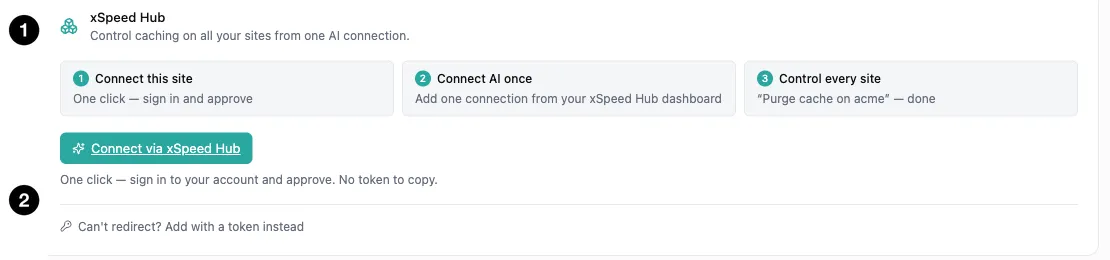
- xSpeed Hub — control caching across all your sites from one AI connection.
- Connect via xSpeed Hub — one-click sign-in.
If you run several sites, connecting each one separately means several tokens to manage and revoke. The Hub inverts that: connect your sites to the Hub, connect the AI to the Hub once, and you can say “purge cache on acme” and have it work.
The flow is three steps — connect this site, connect your AI once from the Hub dashboard, then control every site. As the panel notes: “One click — sign in to your account and approve. No token to copy.”
Same security advantage as the OAuth format, extended across sites: no secret to paste, and revocation happens in one place rather than site by site.
From a performance report to an approved change
Keep the report’s exact scan ID, device, requested/final URL and timestamps in your AI brief, together with its full .md report link. Read the findings before making changes. A reachable public MCP endpoint or a public Hub signal is not proof that your assistant is authenticated to the correct site.
Ask the assistant to inspect the installed capabilities and current settings, propose a small reversible change, and obtain your approval. The optimizer applies its own plan; it does not accept a report URL or scan_id. Its server-side verification cannot run JavaScript, and per-step reversion is not a full-site rollback. Browser and console checks, then a comparable fresh speed test, remain necessary.
Installation, configured caching, site attachment and authenticated AI access are separate steps. An excellent result does not require a migration or a new plugin. See the current tool reference for measurement, scope and verification boundaries.
Related
- xSpeed Cache Site MCP tool reference
- xSpeed Hub MCP: one AI connection for every site
- Step-by-step setup for each AI client: Claude Code, Claude, ChatGPT, Codex, Cursor, GitHub Copilot, Gemini CLI and more, through xSpeed Hub
- How to write prompts for xSpeed Hub: name the server and the site, read before you write, and act on every site in one call
- How to connect an AI provider
- How to control AI data collection
- How to run a full site scan
- How to read your dashboard