How to generate Critical CSS
Inline the styles needed to paint the top of the page, defer the rest, and stop your stylesheet blocking first render — generated in the browser or on the server.
A browser won’t paint anything until it has your stylesheet. That single file, however small, sits between your visitor and seeing the page. Critical CSS breaks the deadlock: the handful of rules needed to draw the top of the page are inlined directly into the HTML, and the full stylesheet is deferred. The visitor sees a styled page immediately, and the rest arrives behind it.
Where to find it
- In your WordPress admin, click xSpeed Cache in the left menu.
- In the xSpeed Cache sidebar, open the Optimization group.
- Click the CSS & JavaScript card, then the Critical CSS tab.
Shortcut: open
wp-admin/admin.php?page=xspeed#/performance/minify/criticaldirectly.⭐ This tab is part of xSpeed Pro.
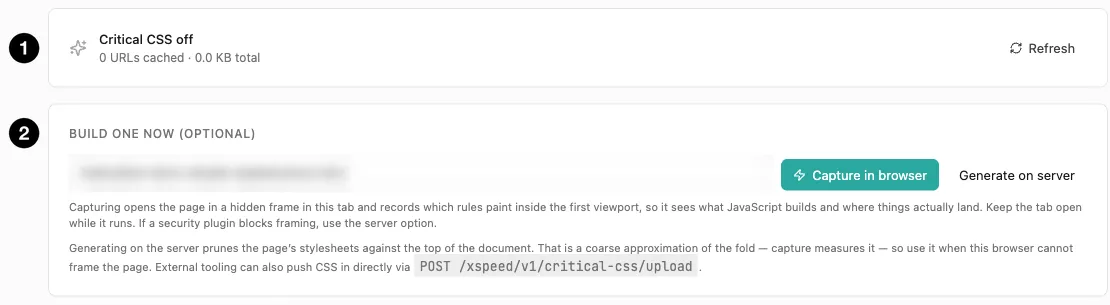
- Status — whether it’s on, how many URLs are cached, and total size.
- Build one now (optional) — capture in the browser, or generate on the server, instead of waiting for an automatic build.
Settings at a glance
| Setting | Default | What it does |
|---|---|---|
| Enable Critical CSS | Off | Inline cached critical CSS and defer the rest. |
| Defer remaining stylesheets | On | Swap non-critical links to media="print" onload. Deferring every sheet waits for a confirmed fold. |
| Learn the fold from real visitors | Off | Keep the fold beacon running even with deferral off. It already runs while deferral is on. |
How it works
Critical CSS is built per URL, because different templates need different rules — your homepage and a blog post don’t paint the same things. Once a page has an entry, it inlines its critical CSS and defers the rest.
Builds happen on their own. A visitor landing on a page that has no critical CSS queues one, and WordPress cron builds it a few minutes later — you don’t have to press anything. Pages are built as visitors reach them, so a page nobody has opened yet has no entry and loads its stylesheets normally. The buttons on the panel are for building a page right now instead of waiting.
Entries don’t go stale as the site changes. Every request checks a fingerprint of your theme, active plugins and their versions, and a page whose fingerprint has moved is rebuilt. That’s also why Purge all leaves generated CSS alone: it isn’t a render cache, and clearing it only meant paying to build it again.
Two ways to generate
When you’d rather not wait for a visitor, the panel builds a page on demand in two ways: Capture in browser and Generate on server.
| Capture in browser | Generate on server | |
|---|---|---|
| How | Opens the page in a hidden frame in this tab and records which rules actually paint in the first viewport | Has a real browser render the page — brokered by the Hub, or through your own rendering service — and takes the fold it measured |
| Accuracy | Measures the real fold, at your screen size, including anything JavaScript builds | Also a measured fold |
| Needs | The tab kept open while it runs | Nothing — works headlessly |
| Fails when | A security plugin blocks framing | The render fails — reported, never swapped for a guess |
Capture in browser measures the page in your browser and sees everything JavaScript builds. The catch is that it needs the tab left open while it works.
Generate on server is no longer a rough approximation. It has a real browser render the page and takes the fold from what that browser measured, which makes it the natural choice when your browser can’t frame the page — typically because a security plugin sends headers that forbid it.
You can also push CSS in from external tooling via POST /xspeed/v1/critical-css/upload, if you already generate critical CSS in a build pipeline.
⚠️ A failed render is reported, not replaced with a guess. On a licensed install, if a render fails, Critical CSS won’t quietly fall back to a coarser build read from the page’s markup. The failure shows on the panel, from WP-CLI and in the activity log, and automatic builds pause for a cooldown before trying again. A silent stand-in is how a licence or renderer problem used to go unnoticed on a live site.
⚠️ “Nothing inlined” is a result, not an error. A run can finish without storing any CSS — the page had nothing above the fold worth inlining, or the capture produced no usable rules. The panel says so explicitly with a Nothing inlined notice and the reason, instead of reporting Done as if CSS had been stored. If you see it, check you generated against a page that actually renders content above the fold, then try Capture in browser if you used the server route.
Settings
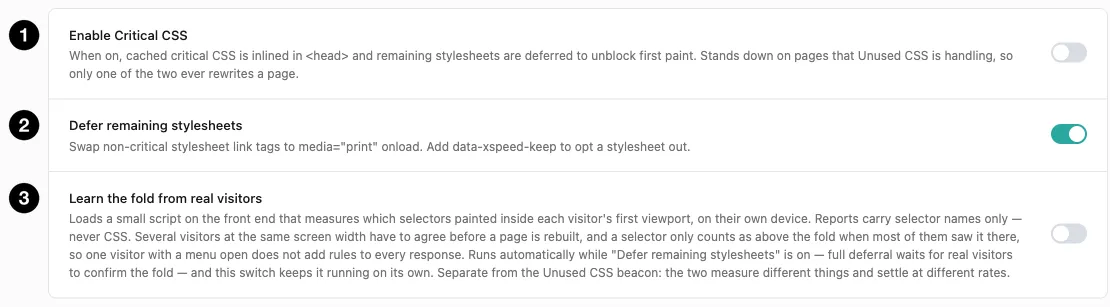
- Enable Critical CSS — the master switch.
- Defer remaining stylesheets — make the rest non-blocking.
- Learn the fold from real visitors — refine from real page views.
Enable Critical CSS inlines cached critical CSS into <head> and defers the remaining stylesheets. It has one important piece of built-in coordination: it stands down on pages where Unused CSS is handling things, so only one of the two ever rewrites a given page. You can run both features without them fighting.
Defer remaining stylesheets is on by default. It swaps non-critical stylesheet links to media="print" with an onload handler — the standard trick for making a stylesheet non-blocking. Individual stylesheets can opt out with a data-xspeed-keep attribute.
Deferring every remaining stylesheet waits until the fold can be trusted. Three things have to hold: the fold was measured from a real rendered page rather than estimated from markup, it wasn’t cut short by the size cap, and enough real desktop visitors have confirmed it. Until then xSpeed holds back from deferring everything — so switching this on is safe on day one, and full deferral engages by itself as traffic arrives. Rebuilding a page resets its confirmation, because visitors vouched for the old CSS rather than the new, though the reports already collected still count toward confirming it again.
Learn the fold from real visitors is off by default, and it’s the subtlest setting here. It loads a small script on the front end that measures which selectors actually painted inside each visitor’s first viewport, on their own device. Reports carry selector names only — never CSS, and never visitor data.
🔒 That script also runs whenever Defer remaining stylesheets is on — the default once Critical CSS is enabled — because it’s how full deferral gets confirmed. This switch keeps it running on its own, even with deferral off. For no front-end measurement at all, turn both off.
The point is that “the fold” isn’t one thing. A phone and a desktop see wildly different amounts of your page. With this on, a selector only counts as above-the-fold once it appears for most visitors who saw it — so a menu that only opens on click doesn’t get promoted into your critical CSS just because it exists in the markup.
💡 This is a separate mechanism from the Unused CSS beacon, and they measure different things. The fold beacon asks “what paints first?” The unused-CSS beacon asks “what gets used at all?” Turning one on doesn’t affect the other.
A sensible workflow
- Turn on Load CSS Asynchronously on the Minify tab — critical CSS exists to make async stylesheets safe.
- Turn on Enable Critical CSS. Pages start building on their own as visitors reach them.
- Build your most important pages now instead of waiting — the homepage, a representative post, and any landing page that matters.
- Check those pages in a private window, then leave it running. Full deferral engages by itself once real visitors have confirmed the fold.
💡 A page without critical CSS isn’t broken. Entries are per URL, not per template, and a page nobody has visited yet simply loads its stylesheets normally until its first visitor queues a build.