How to connect an AI provider
Connect your own OpenAI, Anthropic, Gemini or OpenRouter key once — every Pro AI feature shares that one connection, with a usage counter you can watch.
Several Pro features — Adaptive Cache, Smart Image, and others — can use an AI model to explain their reasoning in plain English. This panel is where you connect that model once. Every AI feature then shares the same provider, model and key.
Where to find it
- In your WordPress admin, click xSpeed Cache in the left menu.
- In the xSpeed Cache sidebar, open the AI & agents group.
- Click the AI Provider card.
Shortcut: open
wp-admin/admin.php?page=xspeed#/ai-agents/ai-providerdirectly.⭐ This panel is part of xSpeed Pro.
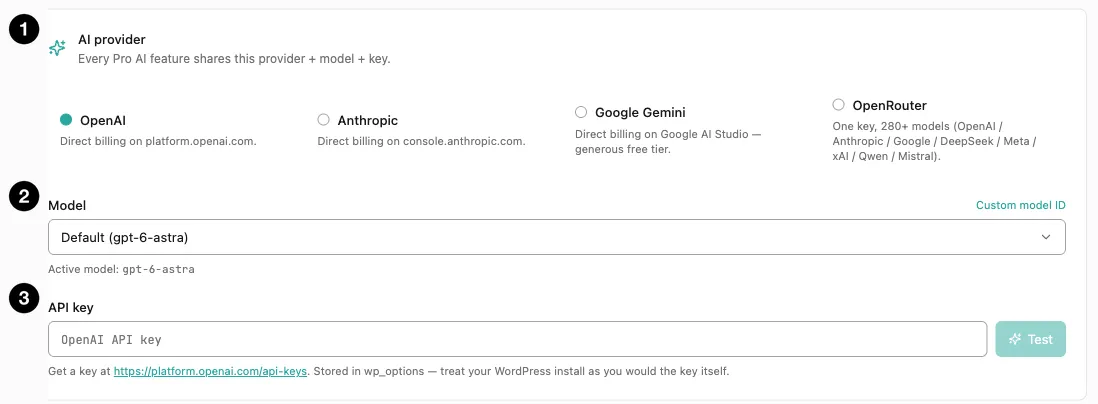
- AI provider — pick one of four.
- Model — leave on Default, or choose one.
- API key — paste it, then Test.
Settings at a glance
| Setting | Default | What it does |
|---|---|---|
| Provider | OpenAI | Which service every AI feature uses. |
| Model | Default | Which model, or a custom model ID. |
| API key | Empty | Your key with that provider. One field per provider. |
How it works
You bring your own AI account and key — xSpeed doesn’t resell AI or add a markup. You pay your chosen provider directly for what you use, and xSpeed keeps usage down by caching AI responses so a repeated request doesn’t bill again.
Three steps: pick a provider, optionally pick a model, paste the key.
Nothing is sent anywhere until an AI feature runs. If you never turn one on, connecting a key here does nothing by itself.
Choosing a provider
| Provider | Notes |
|---|---|
| OpenAI | Direct billing on platform.openai.com. |
| Anthropic | Direct billing on console.anthropic.com. |
| Google Gemini | Direct billing on Google AI Studio — generous free tier, so the cheapest way to start. |
| OpenRouter | One key, 280+ models across OpenAI, Anthropic, Google, DeepSeek, Meta, xAI, Qwen and Mistral. |
If you already have an account with one of the first three, use it. If you’re starting from nothing, Gemini’s free tier costs you nothing to try. If you want to experiment across many models with a single key, OpenRouter.
Each provider keeps its own key

- API key — the field, its placeholder and its link all follow the selected provider.
Switching provider swaps the key field entirely — the placeholder changes from “OpenAI API key” to “Anthropic API key”, and the Get a key at link changes to that provider’s own key page.
Crucially, the other keys aren’t discarded. There are four separate stored fields, one per provider, so you can switch back and forth while evaluating without re-entering anything.
Model
Leave Model on Default and xSpeed uses each provider’s current recommended model — shown beneath as “Active model: …” so you always know what’s actually being used.
Advanced users can pick from the dropdown, or use Custom model ID to type one directly. That’s useful when a provider ships a model newer than the plugin’s list.
The API key
Paste the key and press Test to confirm xSpeed can reach the provider. Test is disabled until a key is entered, so nothing happens on an empty field.
🔒 The panel is blunt about where the key lives, and you should take it seriously. It says: “Stored in wp_options — treat your WordPress install as you would the key itself.”
That’s an accurate framing. Anyone with admin access to your WordPress, or any plugin running with those privileges, can read the key. Use a scoped or restricted key where your provider supports it, and rotate it at the provider if you ever suspect exposure. Never share a screenshot of this panel with the key visible.
What actually gets sent to the provider is only what a feature needs, and only when you use that feature: aggregated, site-level figures such as traffic counters or media-library statistics. Never individual visitor data. AI Privacy is the switch that governs it, and revoking consent there stops these calls entirely.
The usage counter

- Usage — four counters shared by every AI feature, with Reset.
| Counter | Meaning |
|---|---|
| Requests | Calls made to the provider. |
| Cache hits | Calls answered from xSpeed’s own cache. |
| Tokens in | Volume sent. |
| Tokens out | Volume received. |
Cache hits cost nothing — the panel notes they “short-circuit before the API call”, so they never reach the provider and never bill. A high ratio of cache hits to requests means xSpeed is doing its job of keeping your spend low.
Treat these as a rough activity gauge. Your provider’s own dashboard is the source of truth for billing; this counter exists so you can see whether a feature is calling out more than you expected. Reset zeroes it.