How to clean up your database
Post revisions, spam, expired transients and orphan meta accumulate forever by default. Scan what's actually there, clean the categories you choose, and optimize your tables.
WordPress never throws anything away. Every draft you saved becomes a revision, every spam comment sits in a table, every expired transient stays until something clears it. None of it is served to visitors, but all of it makes queries slower and backups bigger. This panel shows exactly what has accumulated and lets you remove the parts you choose.
💡 Set expectations: this is housekeeping, not tuning. A smaller
wp_postsandwp_postmetadoes make queries cheaper, but the gain is modest next to caching — Page Cache and Object Cache are where the large wins are. Clean the database because a lean one is easier to back up and reason about, not as a substitute for caching.
Where to find it
- In your WordPress admin, click xSpeed Cache in the left menu.
- In the xSpeed Cache sidebar, open the Tools group.
- Click the Database card.
Shortcut: open
wp-admin/admin.php?page=xspeed#/tools/databasedirectly.✅ This panel is part of xSpeed Cache (Free).
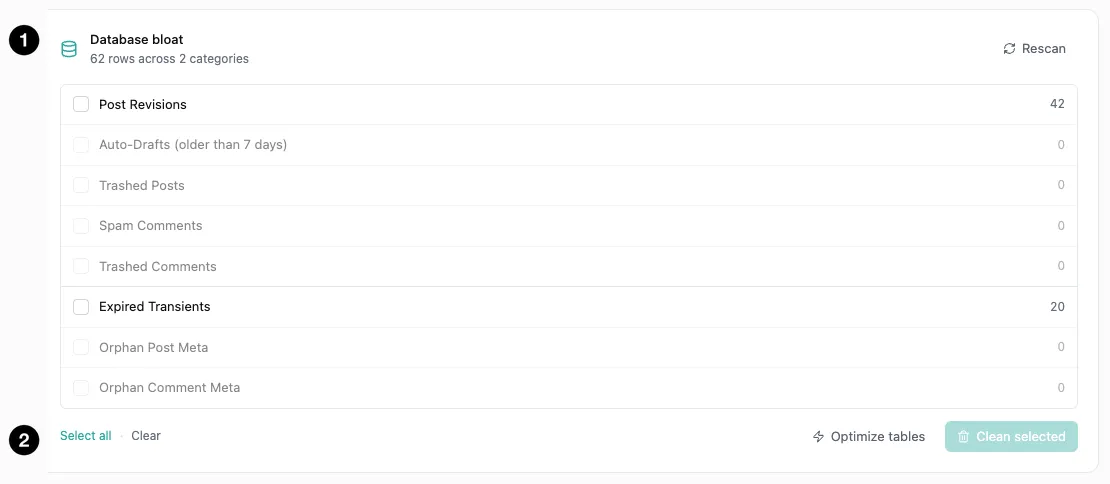
- Database bloat — the scan result, with Rescan.
- Actions — Optimize tables and Clean selected.
Settings at a glance
| Setting | Default | What it does |
|---|---|---|
| Auto-Cleanup Schedule | Manual | How often cleanup runs by itself. |
| Auto-Cleanup Types | Empty | Which categories the schedule cleans. |
The scan and the Clean selected / Optimize tables buttons are actions rather than settings — nothing is removed until you press one.
How it works
Opening the panel runs a scan and reports what it found, broken down by category with a row count for each. Nothing is deleted by scanning. You tick the categories you want gone and press Clean selected.
The header gives you the shape of the problem at a glance — for example “62 rows across 2 categories”, meaning only two of the eight categories actually contain anything. Categories with a zero count are greyed out, so you can see immediately where the weight is.
The eight categories
| Category | What it is | Safe to clean? |
|---|---|---|
| Post Revisions | Every saved draft state of every post | Yes, though you lose the ability to roll back |
| Auto-Drafts (older than 7 days) | Abandoned “new post” stubs | Yes |
| Trashed Posts | Posts in the trash | Yes — but they’re gone for good |
| Spam Comments | Comments marked spam | Yes |
| Trashed Comments | Comments in the trash | Yes |
| Expired Transients | Cached values past their expiry | Yes — always safe |
| Orphan Post Meta | Metadata whose post no longer exists | Yes |
| Orphan Comment Meta | Metadata whose comment no longer exists | Yes |
Expired transients and orphan meta are pure waste — the data they belong to is already gone or already invalid. Clean those without hesitation.
Post revisions are the judgement call, and usually the biggest number. On this site they’re 42 of the 62 rows found. Revisions are how you undo a bad edit, so deleting them trades recoverability for size. Fine on a site whose content is settled; less so mid-project.
💡 This removes existing revisions; it doesn’t cap future ones. To limit how many WordPress keeps from here on, set
WP_POST_REVISIONSinwp-config.php— that’s a WordPress setting, not an xSpeed one, and the two work well together: cap the growth, then clean up what already accumulated.
Trashed posts and comments are permanent deletions. The trash is WordPress’s undo, and cleaning it empties that. Check the trash before ticking those boxes.
⚠️ Cleaning cannot be undone. There is no confirmation beyond your own selection, and no restore afterwards. If you’ve never done this on a production site, take a database backup first — this is exactly the operation backups exist for.
Optimize tables
Separate from cleaning, and much less dramatic. Deleting rows leaves gaps in MySQL’s storage; Optimize tables reclaims that space and rebuilds indexes.
Run it after a cleanup — that’s when there’s fragmentation to reclaim. Running it on its own achieves little.
Automating it
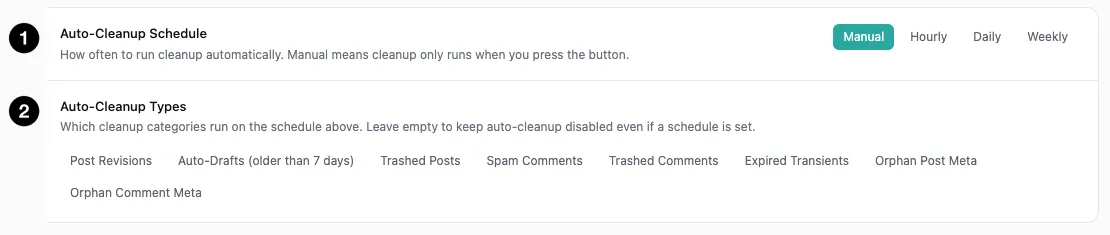
- Auto-Cleanup Schedule — how often cleanup runs by itself.
- Auto-Cleanup Types — which categories the schedule includes.
Auto-Cleanup Schedule defaults to Manual, meaning cleanup only ever runs when you press the button. The alternatives are Hourly, Daily, and Weekly.
Auto-Cleanup Types is empty by default, and this is the part worth understanding: the panel spells out that leaving it empty keeps auto-cleanup disabled even if a schedule is set.
That’s a deliberate safety. Two separate settings must both be configured before anything is deleted automatically — picking a schedule alone does nothing. It prevents the failure where you set “Daily” while exploring and quietly start losing revisions every night.
For a sensible automatic setup: schedule Weekly, and include only Expired Transients, Spam Comments, and the two Orphan Meta types. Those regenerate or are already worthless. Leave revisions and trashed content to manual review.