Features Pricing Reviews FAQ
Get Plugin

Connecting AI Agents with the MCP Server

9 min read

xSpeed Cache has a built-in MCP server. It lets an AI agent, like Claude, connect to your site and manage the cache for you. You paste one URL (or a URL plus a token) into your AI client, and the agent can then read your cache status and run xSpeed Cache actions on your behalf.

This is a free feature. Nothing works until an administrator turns it on by creating a connection token, so a fresh install exposes nothing.

What this does

MCP stands for Model Context Protocol. It is a standard way for AI assistants to talk to outside tools. xSpeed Cache speaks this protocol directly at your own site’s URL, so there is no middle server between your AI client and your site.

Once connected, the AI can call xSpeed Cache “tools” such as checking cache status, purging the cache, or changing a module’s settings. Which actions it can take depends on the access level you grant (read-only or read and write).

Why use it

If you use an AI assistant for day-to-day work, you can ask it to handle cache tasks in plain language. For example, “purge the page cache” or “what’s my current cache status?” The assistant calls the matching xSpeed Cache tool and reports back.

It also means you do not have to open the dashboard for routine checks. The agent can inspect and manage the site through the same connection.

Requirements

  • xSpeed Cache must be active on the site.
  • You must be an administrator (manage_options) to create the connection token or approve an OAuth request.
  • An AI client that supports remote MCP servers over HTTP (for example, Claude Desktop or the Claude Code CLI).

The endpoint URLs

Your site’s MCP endpoint has two forms. Both point to the same server.

FormURLWhen to use
Prettyhttps://yoursite.com/xspeed/mcpThe normal endpoint. Works when permalinks are enabled.
REST fallbackhttps://yoursite.com/wp-json/xspeed/v1/mcpAlways available, even on plain permalinks. Use this if the pretty URL does not respond.

There is also a single paste-in form that puts the token right in the path:

https://yoursite.com/xspeed/mcp/<token>

The token is a 64-character string. When you paste this one URL, your AI client does not need a separate token field.

Note: The pretty URL depends on WordPress rewrite rules. xSpeed Cache adds these rules automatically and re-checks them on load. If the pretty URL ever 404s, re-save your permalinks under Settings then Permalinks, or use the wp-json fallback.

How to connect a client

There are two ways to connect: a connection token you paste, or the OAuth flow where the client only needs the server URL.

Option 1: Connection token (pairing)

This is the simplest path. You create a token and paste it into your client.

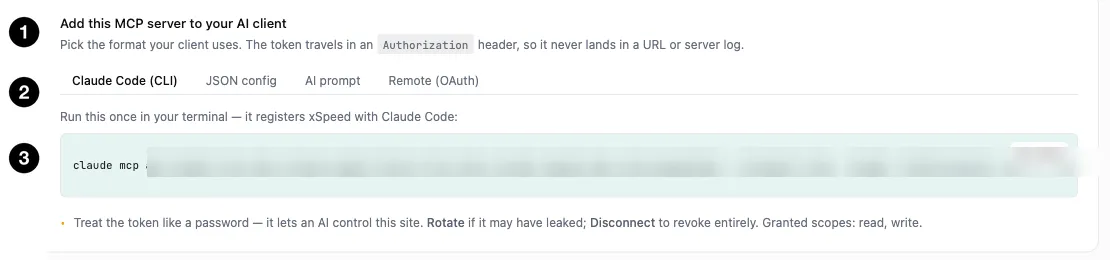
  1. Open the xSpeed Cache dashboard and go to the MCP Server panel (“Connect AI”).
  2. Choose the access level. Leave it as read and write, or tick read-only if you only want the agent to inspect the site.
  3. Click Connect. xSpeed Cache mints a token and shows you the paste-in URL and ready-made config snippets.
  4. Copy the single paste-in URL, or use one of the config snippets below, into your AI client.
  5. Ask the agent to confirm by calling the get_cache_status tool.

The token is presented to the server in one of these ways:

  • As a Bearer token in the Authorization header.
  • In the X-XSpeed-MCP-Token header.
  • Embedded in the URL path (/xspeed/mcp/<token>).

If both a header token and a path token are sent, the header token wins.

Tip: The header form keeps the token out of the URL, so it cannot leak into server or proxy logs. The dashboard gives you a ready-to-paste header-based snippet.

Claude Code CLI. The dashboard shows a one-line command in this shape:

claude mcp add <name> https://yoursite.com/xspeed/mcp --transport http --header "Authorization: Bearer <token>"

The name and URL come before the flags. The server name is derived from your site host (for example xspeed-yoursite), so you can connect several sites to the same client without a name clash.

Claude Desktop and other clients. The dashboard also gives a portable mcpServers JSON block. It declares the HTTP transport and the Bearer header:

{
  "mcpServers": {
    "xspeed-yoursite": {
      "type": "http",
      "url": "https://yoursite.com/xspeed/mcp",
      "headers": {
        "Authorization": "Bearer <token>"
      }
    }
  }
}

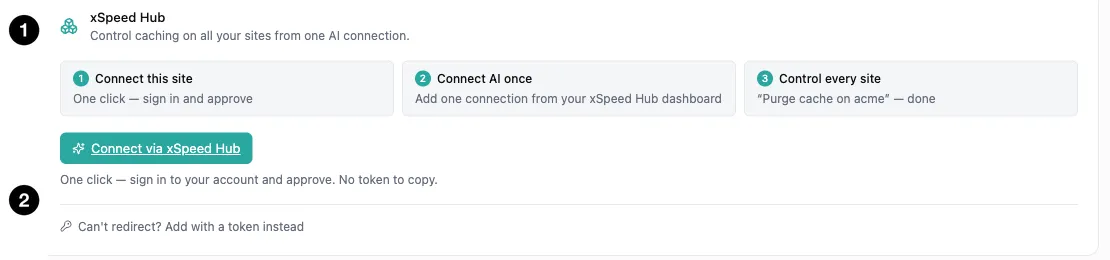
Option 2: OAuth 2.1 (paste the URL only)

Some MCP clients, such as the claude.ai remote-connector flow, take only the server URL and run an OAuth flow themselves. xSpeed Cache includes an OAuth 2.1 authorization server for this.

Here is what happens:

  1. You give the client only your MCP endpoint URL.
  2. The client makes a call, gets a 401, and reads the WWW-Authenticate header. That header points it at your site’s discovery documents.
  3. The client fetches the discovery metadata, registers itself, and sends you to a consent screen in your browser.
  4. Sign in as an administrator. If you are not logged in, WordPress sends you to the login page and back.
  5. The consent screen shows the client name, your site, who you are signed in as, and the access level it is asking for. Click Approve or Deny.
  6. On approve, the client receives an authorization code, exchanges it for tokens, and starts making MCP calls.

The consent screen is served at https://yoursite.com/xspeed/authorize. It is a plain front-end page, not part of the REST API, so your normal login cookie works there.

The OAuth flow uses these endpoints:

EndpointPath
Protected-resource metadata/.well-known/oauth-protected-resource
Authorization-server metadata/.well-known/oauth-authorization-server
Client registration/wp-json/xspeed/v1/mcp/oauth/register
Authorize (consent screen)/xspeed/authorize
Token/wp-json/xspeed/v1/mcp/oauth/token

The flow requires PKCE with the S256 method. Access tokens last one hour and can be refreshed; refresh tokens last 30 days. Authorization codes are single-use and expire after 60 seconds.

Read-only vs read and write

Every connection has an access level.

  • Read and write. The agent can run every tool, including ones that change state: purging the cache, toggling caching, and updating settings.
  • Read-only. The agent can only inspect. Any tool that changes state is refused with a clear message.

You set the level when you connect. You can change it later in two ways:

  • Change access without a new token. The dashboard read-only toggle flips the live connection between read-only and read-write. The paired client keeps working; only its allowed tools change.
  • Rotate the token. This mints a brand-new token and invalidates the old one immediately. Use this if a token leaks. You can also set the access level while rotating.

For OAuth connections, the granted scope decides the level. A grant of read alone is read-only. The umbrella mcp scope, or a write scope, grants read and write.

Managing the connection

From the dashboard you can connect, change access, rotate, and disconnect. The same actions are available on the command line:

CommandWhat it does
wp xspeed mcp statusShow whether MCP is connected, the access level, and the paste-in URL.
wp xspeed mcp connect [--read-only]Create a token and print the paste-in URL.
wp xspeed mcp rotate [--read-only]Mint a fresh token and invalidate the previous one.
wp xspeed mcp disconnectRevoke the token and end all MCP access.

Disconnect is a single off switch. It clears the connection token and revokes every OAuth grant (clients, codes, access and refresh tokens) at once. Any client still using the old credentials is denied on its next call.

Security notes

  • The connection token is a 256-bit random secret. Treat it like a password. Prefer the header form so it stays out of URLs and logs.
  • Only an administrator can create a token or approve an OAuth request. A fresh install has no token, so every MCP call returns 401 until an admin opts in.
  • Failed logins are rate limited per IP. After too many bad-token attempts, that IP is locked out for a while and gets a 429 response. A successful login clears the counter right away. The default is 10 failed attempts and a 15-minute lockout.
  • OAuth access and refresh tokens are stored only as SHA-256 hashes. The raw value is shown once, in the token response.
  • If you think a token has leaked, use Rotate (or wp xspeed mcp rotate) to kill it immediately, or Disconnect to end all access.

Warning: A read-and-write connection lets the agent purge caches, turn caching on or off, and change settings. If you are not sure you need write access, connect as read-only first.

Troubleshooting

The client says it cannot reach the server. Try the wp-json fallback URL. The pretty /xspeed/mcp URL needs rewrite rules; the fallback always works. If the pretty URL is broken, re-save your permalinks.

Every call returns 401 Unauthorized. The site is not connected, or the token is wrong. Open the MCP Server panel and confirm a token exists, then check that the client is sending it in the Bearer or X-XSpeed-MCP-Token header, or in the URL path.

Calls suddenly return 429. The IP has hit the failed-attempt lockout. Wait for the window to pass (15 minutes by default), and fix the token in the client so it stops failing. A correct login clears the lockout.

A write action is refused with a read-only message. The connection is read-only. Flip it to read and write from the dashboard toggle, or reconnect with write access.

The OAuth consent screen keeps sending me to login. You must be signed in as an administrator in the same browser. Log in, then retry the connect from your client.

A Cloudflare or PageSpeed tool is missing from the list. Some tools only appear when their module is active (for example, Cloudflare must be connected, and PageSpeed and Critical CSS are Pro features). If the underlying action is not available, xSpeed Cache hides the tool instead of offering one that always fails.

FAQ

Do I need a hosted service or account with xSpeed Cache to use this? No. Your site is the MCP server. The connection is between your AI client and your own site.

Can I connect more than one site to the same AI client? Yes. Each site gets its own server name derived from its host, so the names do not clash.

Which AI clients work? Any client that supports remote MCP servers over HTTP. The dashboard provides ready-made snippets for the Claude Code CLI and for clients that use an mcpServers JSON block. Clients that support OAuth can connect with just the URL.

Is the token the same as my WordPress password? No. It is a separate secret made only for MCP. Revoking it does not affect your login.

  • xSpeed Cache MCP Tool Reference
  • Connecting an AI Provider
  • Cloudflare Integration