How to enable GZIP compression
Compress responses before sending them so text assets cross the network at a fraction of their size — and check whether your server is already doing it for you.
GZIP is the compression every browser has supported for decades. It shrinks HTML, CSS and JavaScript — often to around a quarter of their original size — before they cross the network. It’s the least controversial performance setting there is: no visual change, no behavioural change, just fewer bytes.
Where to find it
- In your WordPress admin, click xSpeed Cache in the left menu.
- In the xSpeed Cache sidebar, open the Optimization group.
- Click the Compression card, then the GZIP tab.
Shortcut: open
wp-admin/admin.php?page=xspeed#/performance/gzipdirectly.✅ This tab is part of xSpeed Cache (Free).
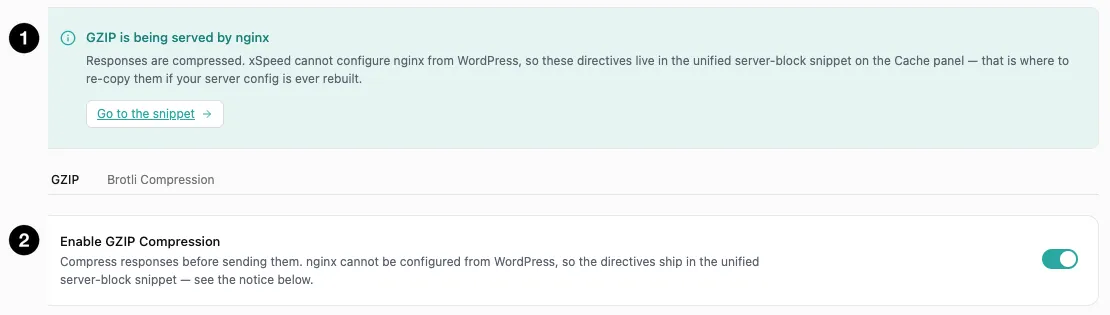
- Status notice — whether your server is already compressing.
- Enable GZIP Compression — the toggle.
Settings at a glance
| Setting | Default | What it does |
|---|---|---|
| Enable GZIP Compression | Off | Compress responses before sending them. |
How it works
When a browser requests a page it advertises which compressions it accepts. If the server supports one, it compresses the response and sets a content-encoding header; the browser decompresses on arrival. The visitor sees nothing different — the page simply arrives sooner.
💡 To confirm it’s actually working: open your browser’s dev tools, load the site, select the document request, and look for
content-encoding: gzipamong the response headers. That header is the whole proof — if it’s absent, the setting is saved but the server isn’t compressing.
Compression applies to text: HTML, CSS, JavaScript, JSON, SVG. It is not applied to JPEG, PNG or WebP, which are already compressed — running them through GZIP would waste CPU for no gain.
Check the notice before touching the toggle
The card above the toggle is the important part of this tab, and on many hosts it will say your server is already compressing — for example “GZIP is being served by nginx.”
If it does, turning the toggle on changes nothing meaningful. Your responses are already compressed, at the server layer, which is faster than doing it in PHP. The notice exists so you can confirm that and move on rather than hunting for a problem.
Where the notice indicates compression is not being handled upstream — some Apache configurations, some shared hosts — the toggle does the work in PHP instead.
| Server | What happens |
|---|---|
| Apache / LiteSpeed | xSpeed can apply the directives. |
| nginx | xSpeed cannot configure nginx from WordPress. Directives ship in the unified server-block snippet on the Page Cache panel. |
⚠️ On nginx the snippet is the only route. Toggling here won’t change your server’s behaviour — you need the directives in your server block. The notice links to where they live, and you’ll need to re-copy them if your server config is ever rebuilt.