Why Is My WooCommerce Admin Slow? Seven Fixes That Work
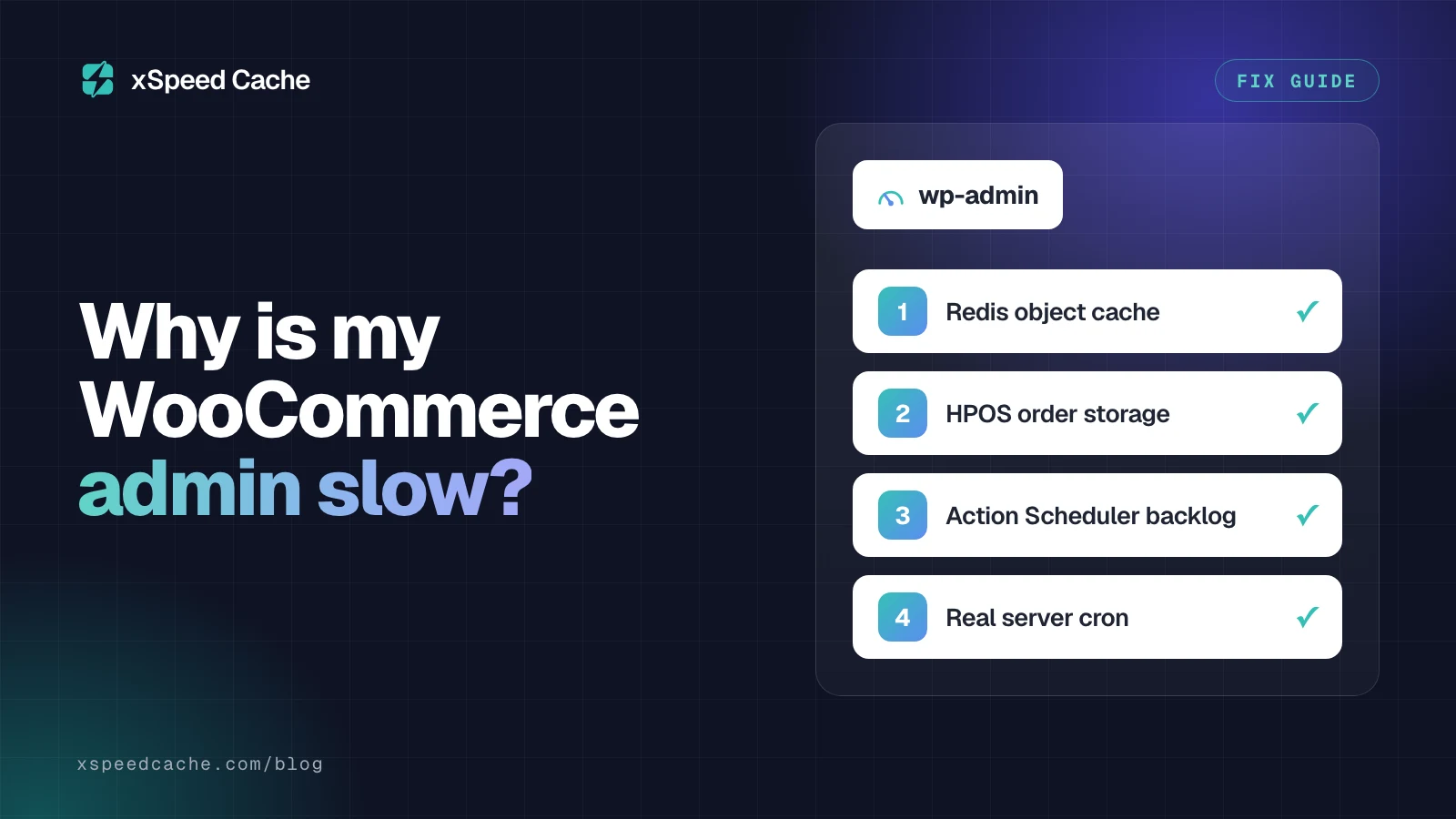
Your shop loads fast for shoppers, but the Orders screen takes four seconds and saving a product feels like waiting for a bus. That’s normal, and it’s not a caching failure. A page cache never serves wp-admin. Every admin screen is built fresh for the logged-in user, with every database query WooCommerce needs. So the fixes for a slow back end are different from the fixes for a slow shop. They’re about queries, background jobs and requests the browser keeps making while a screen is open.
Here are seven fixes, in the order we’d try them. Each says how to tell whether it’s your problem.
First, find out what’s slow
Install the free Query Monitor plugin and open the slow screen. Its toolbar panel shows how long the page took, how many database queries ran, and which plugin or theme made them. Sort the queries by time. Three patterns cover most slow WooCommerce admins:
- Hundreds of fast queries: repeated lookups that an object cache would answer from memory (fix 1).
- A few very slow queries on orders: the order tables (fix 2).
- The page itself is fine, but the browser keeps working: background requests (fixes 4 and 5).
Write down the page time for three screens (the Orders list, editing a product, and the main dashboard), so you can tell whether each fix helped.
1. Turn on an object cache
This is the biggest single fix for most stores. WordPress and WooCommerce look up the same settings, product data and user data over and over while building an admin screen. An object cache (Redis or Memcached) keeps those results in memory, so the second lookup doesn’t touch the database.
In xSpeed Cache, it’s under Object Cache. Choose Redis if your host provides it, and turn it on. Setting up Redis for WordPress covers hosts that need a little set-up. On xCloud, use xSpeed’s object cache and keep xCloud’s own Redis Object Caching toggle off: WordPress can only use one at a time. The Redis server keeps running with that toggle off, and xSpeed connects to it.
How to tell it worked: Query Monitor’s query count on the same screen drops sharply after the second load.
2. Use High-Performance Order Storage (HPOS)
WooCommerce used to keep orders in WordPress’s posts tables, alongside every page and product. High-Performance Order Storage moves them into tables built for orders, which makes the Orders screen, order search and reports much quicker on a store with years of history. Newer stores use it by default. Older ones often still don’t.
Check under WooCommerce › Settings › Advanced › Features, in Order data storage. If it says the posts storage is in use:
- Check the same screen for plugins it lists as incompatible, and update or replace them first.
- Turn on compatibility mode, which copies orders to the new tables. Let it finish.
- Switch to High-performance order storage.
- Once everything has worked for a while, turn compatibility mode off, so every order isn’t written twice.
Take a database backup before you switch.
3. Clear the Action Scheduler backlog
WooCommerce runs a lot of work in the background through Action Scheduler: emails, webhooks, subscription renewals, analytics imports, and jobs from other plugins. You can see the queue under WooCommerce › Status › Scheduled Actions.
Look at two numbers there:
- Past-due: jobs that should have run but haven’t. If this keeps growing, background jobs aren’t running at all, so fix 4 is your problem.
- Failed: jobs that errored. A few are normal. Thousands from one hook point to a plugin that keeps failing. Find the plugin and fix or remove it.
Action Scheduler deletes old completed jobs on its own, but its log tables can still grow large on a busy store. A large table slows that screen, not your whole admin. The real fix is keeping the queue moving.
4. Make WP-Cron reliable
WordPress runs scheduled tasks, including Action Scheduler, through WP-Cron, which only fires when someone loads a page. On a well-cached store, most visits are served from cache and never start WordPress, so scheduled tasks can fall behind. Then they all run at once on the next uncached request, often an admin screen you’ve just opened.
The fix is a real server cron job:
- Add
define( 'DISABLE_WP_CRON', true );towp-config.php. - Ask your host, or use its control panel, to run WordPress’s cron every minute or every five minutes. With WP-CLI, that’s
wp cron event run --due-now.
How to tell it worked: the Past-due count in Scheduled Actions stays near zero.
5. Calm the Heartbeat
While a wp-admin screen is open, WordPress’s Heartbeat sends a request to your server at regular intervals. It saves drafts, warns when someone else is editing, and refreshes dashboard notices. With several tabs open, that’s a steady stream of PHP requests that compete with the screen you’re actually using.
xSpeed Cache controls it under Heartbeat, and its defaults are already sensible:
- Dashboard: throttled to once a minute
- Editor: throttled to once a minute
- Frontend: disabled
If the admin is still sluggish with many tabs open, raise Throttle interval (up to 300 seconds) before disabling anything. Don’t disable it in the Editor: that turns off autosave and the “someone else is editing” warning.
6. Rein in WooCommerce Analytics
WooCommerce’s Analytics reports are built from their own tables, filled by background imports. On a large store, the first import, or a re-import after changing settings, can keep the database busy for hours, and the Analytics screens are slow while it runs.
- Let an import finish before judging admin speed.
- If nobody uses the Analytics reports, recent WooCommerce versions let you turn them off under WooCommerce › Settings › Advanced › Features.
7. Show fewer orders per page
The Orders and Products lists show 20 rows by default. Each row is built with its own lookups, and plugins often add columns that make it slower. If you’ve raised this to 100 or more, the list takes noticeably longer to open. Click Screen Options at the top of the screen and bring the number back down. Hide columns you don’t use while you’re there.
What doesn’t help
- Page caching settings. wp-admin is never page-cached, so expiry times, preloading and exclusions make no difference to it.
- Front-end JavaScript settings. Defer, Delay and Minify only apply to the public site.
- Deleting revisions to speed up the admin. Cleaning the database is worth doing (weekly on a store), but revisions are rarely what makes wp-admin slow.
The short version
- Turn on a Redis object cache.
- Move orders to HPOS.
- Check Scheduled Actions for a growing Past-due count.
- Run WP-Cron from a real server cron job.
- Leave Heartbeat throttled, not off, in the editor.
- Let Analytics imports finish, or turn Analytics off if unused.
- Keep 20 orders per page.
Then measure the same three screens again with Query Monitor. For the shopper side of the store, see Best xSpeed Cache settings for WooCommerce. If logged-in pages on the front end are slow too, why WordPress is slow when you’re logged in covers that side.
Frequently asked questions
Why is WooCommerce fast for customers but slow in wp-admin?
Customers get pages from the page cache. wp-admin is never cached, so every screen runs all its database queries. An object cache and HPOS are the fixes that reach the admin.
Does a caching plugin speed up the WooCommerce admin?
The page cache doesn’t. The object cache does, because it answers repeated database lookups from memory on every page, admin screens included.
Is it safe to disable the WordPress Heartbeat?
On the public site, usually yes, and xSpeed turns it off there by default. In the post editor, no: it powers autosave and the warning when someone else is editing. Throttle it instead.
What is Action Scheduler and why is it so big?
It’s the queue WooCommerce and many plugins use for background jobs. It grows when jobs pile up because WP-Cron isn’t running, or when a plugin’s jobs keep failing. Fix the cause, and the queue shrinks on its own.