xSpeed Cache October 2026 Release Recap
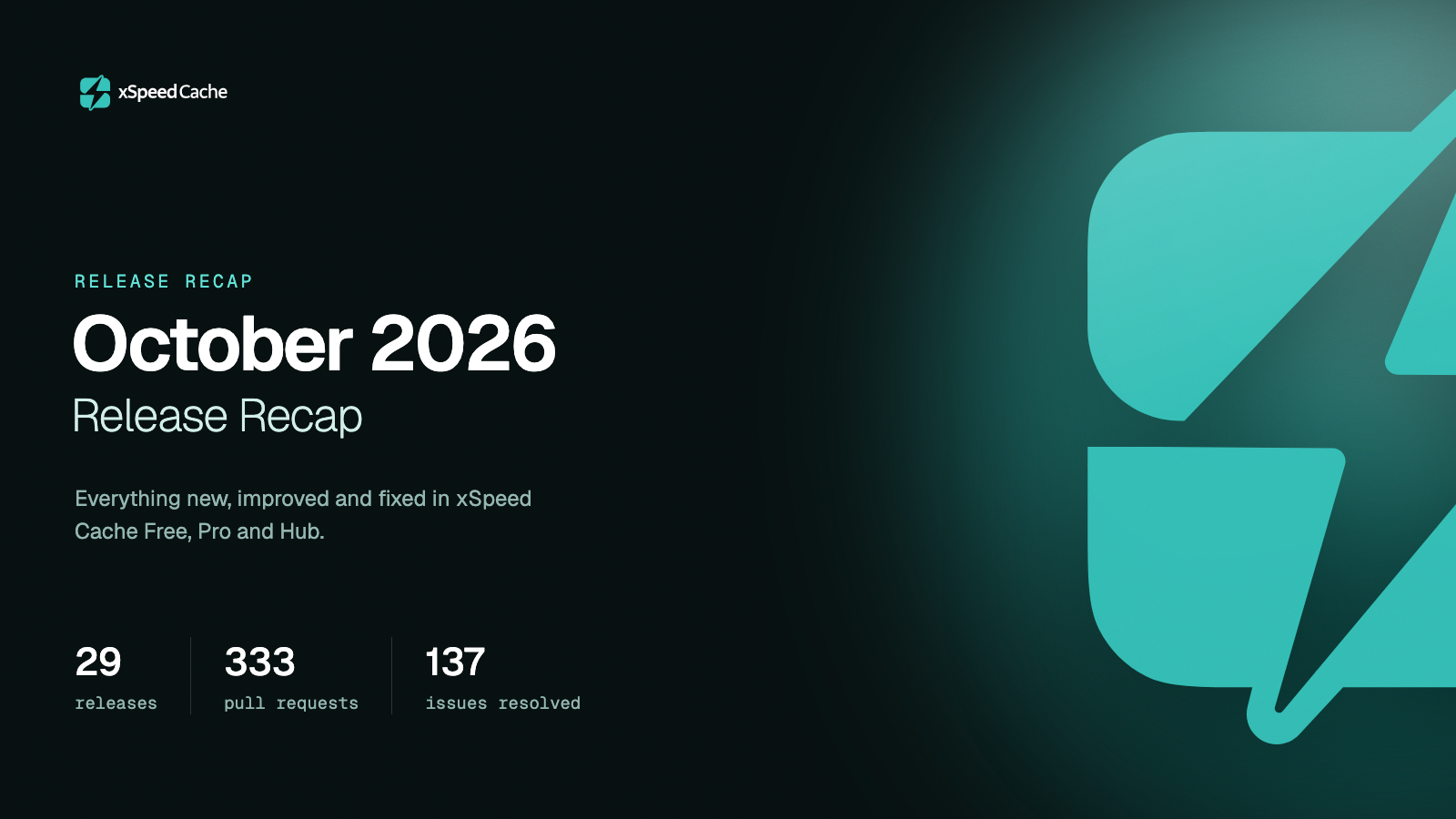
October was a big month for xSpeed Cache. Across the free plugin, xSpeed Cache Pro and xSpeed Hub, the team shipped 29 releases (new versions), merged 333 code changes (pull requests) and resolved 137 reported issues. That is 72 more code changes and 30 more resolved issues than in September.
The biggest addition is the Cloudflare Enterprise add-on. It stores copies of your pages on Cloudflare’s servers around the world, so visitors get them from a location near them. Other highlights include smarter cache clearing, an optional cache for tablets, Google Fonts served from your own site, and a rule that an AI assistant must ask your permission before doing anything that cannot be undone. October also brought an important security fix, so please update.
Below, we go through everything product by product: what is new, what got better and what was fixed.
October 2026 by the numbers
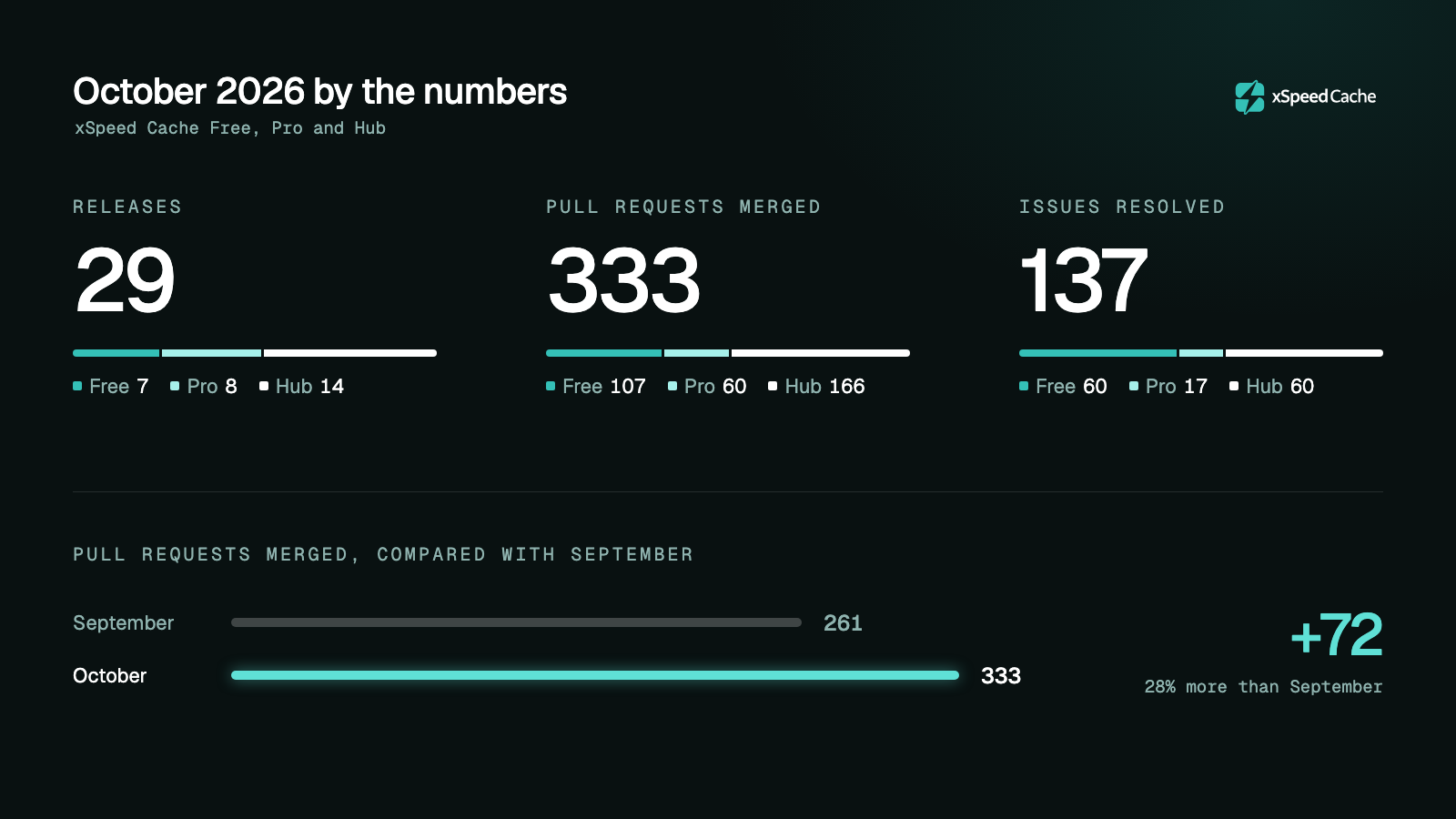
| Product | Releases | Versions | Pull requests merged | Issues resolved |
|---|---|---|---|---|
| xSpeed Cache (free) | 7 | 1.3.7 → 1.4.5 | 107 | 60 |
| xSpeed Cache Pro | 8 | 1.2.7 → 1.3.6 | 60 | 17 |
| xSpeed Hub | 14 | 1.4.3 → 1.6.5 | 166 | 60 |
| Total | 29 | 333 | 137 |
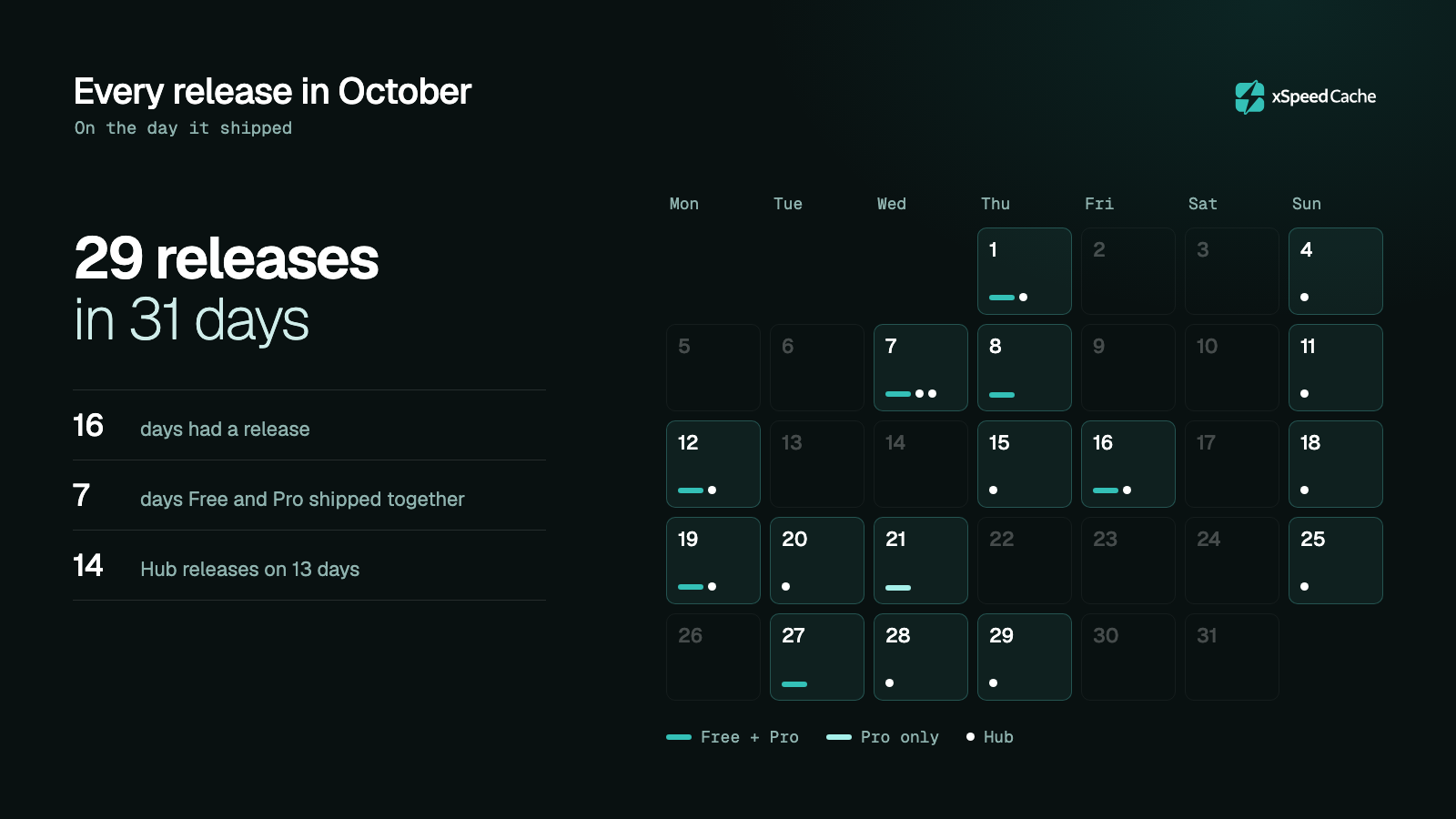
The free plugin and Pro were updated together on seven days, and Pro got one extra fix on its own on October 21. Hub, which runs online so you never install it, was updated 14 times on 13 days. The Hub team also merged more than twice as many code changes as in September: 166, up from 68. In total, something new went out on 16 of October’s 31 days.
The highlights
Here are the six changes most site owners will notice.
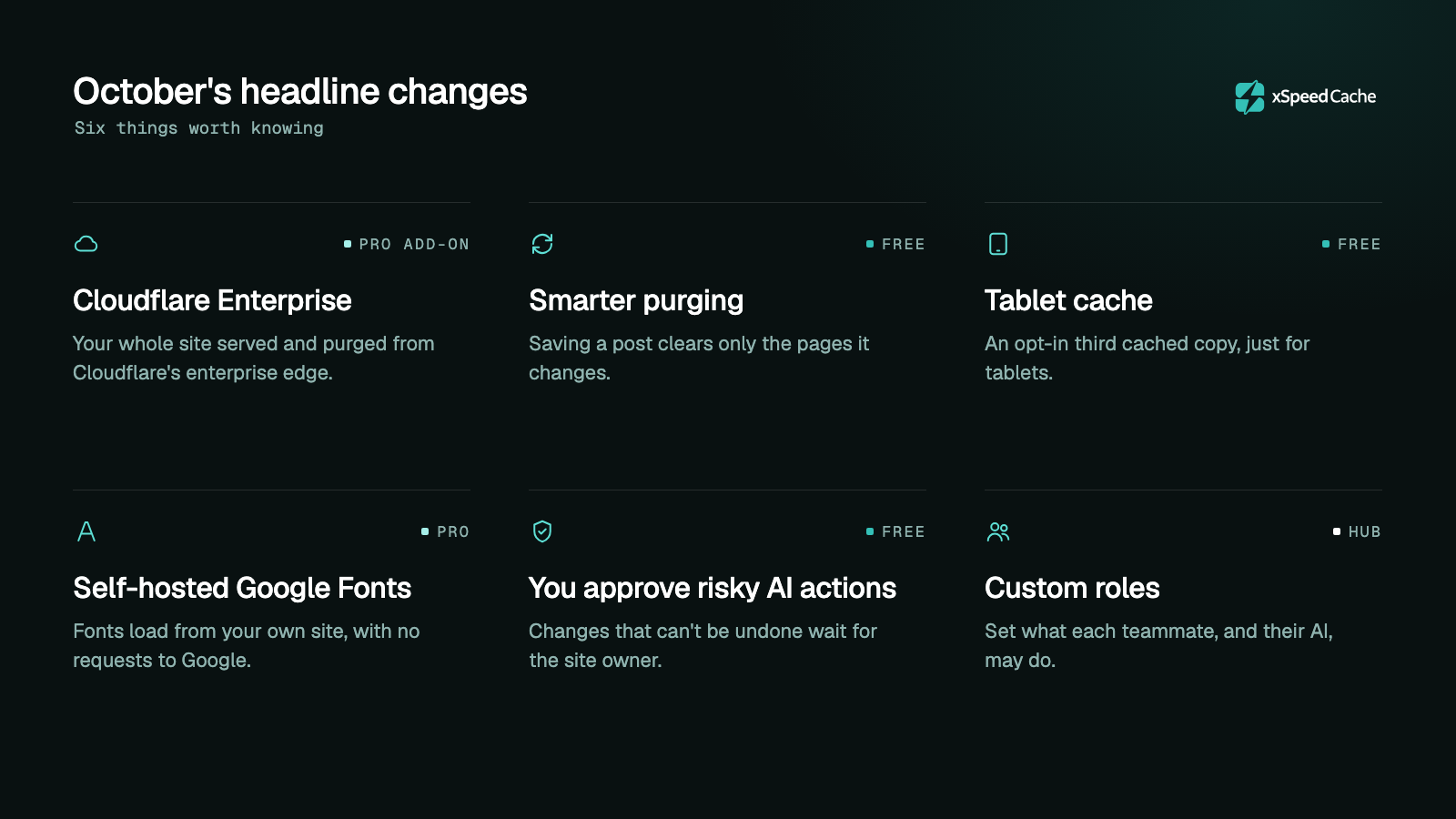
- Cloudflare Enterprise add-on. Your whole site is stored and cleared on Cloudflare’s worldwide network. You set it up in four steps from one screen in your WordPress dashboard.
- Smarter cache clearing. When you update a post, xSpeed clears only the pages that show it, such as the post itself and your blog page. It clears the whole cache only when the change affects every page, for example a menu.
- A cache for tablets. You can now keep a separate copy of your pages for tablets, and choose whether tablets see your desktop or phone layout. It is off unless you turn it on.
- Google Fonts from your own site. In Pro, fonts can load from your website, so visitors’ browsers don’t contact Google.
- AI assistants must ask first. Before an AI assistant can do something that cannot be undone, such as deleting old database content, you have to approve it in your WordPress dashboard.
- Team roles in Hub. You can decide exactly what each teammate can do, and what their AI assistant can do.
What’s new in xSpeed Cache (free)
Caching and clearing the cache
- Updating a post clears less. Saving a post, comment or product clears the post, its category and archive pages, and any page that lists it. The whole cache is cleared only when the change affects something shown on every page, such as a menu or a “Recent Posts” widget. The purge log tells you why.
- Clear one type of cache at a time. The Purge All button now has a menu, so you can clear just the page cache, just the CSS and JavaScript files, just the object cache or just the REST API cache.
- Works with more hosts. Purge All now also clears the server cache used by hosts such as GridPane, EasyEngine and WordOps.
- A cache for tablets (optional). Keep a third copy of each page just for tablets, and choose whether tablets get your desktop or phone layout.
- Markdown copies for AI tools (optional). Some SEO plugins send AI tools a plain-text (Markdown) version of your pages. xSpeed can now cache that version separately.
- Clear warnings when caching is off. Every dashboard page tells you when the page cache is off. If another plugin is already caching your pages, it names that plugin.
- Old pages expire on time. Saved pages are checked every hour, so visitors no longer get a copy that should have expired.
- Pages with non-English addresses work. Pages whose web address uses Chinese, Arabic or other non-Latin letters each get their own cached copy, and clear correctly.
- More changes clear the right pages. Saving a Divi Theme Builder layout, editing widgets, publishing from the Customizer and making a post sticky now all clear the pages they affect.
Cloudflare
- Sites on xCloud’s Cloudflare Enterprise stay in sync. Every time xSpeed clears the cache, it also clears the copies stored on Cloudflare.
- Forms keep working. Cloudflare never keeps a page longer than xSpeed would, so contact and checkout forms on cached pages no longer stop working after a while.
- Tracking links are handled properly. Pages opened from links with tracking codes (such as
?utm_source=) are no longer stored on Cloudflare, where clearing the cache couldn’t remove them. - One clear covers every device. Clearing a page removes Cloudflare’s phone, tablet and desktop copies of it.
- The Health page warns you when Cloudflare is storing pages that shouldn’t be stored.
Speed optimizations
- Delayed scripts wait for a real person. Delay JS holds back scripts (like chat widgets and trackers) until a visitor scrolls, taps or moves the mouse. On new installs there is no backup timer, so speed tests now measure the faster page.
- Elementor works better with Delay JS. Sticky headers and entrance animations from Elementor Pro now work correctly.
- More cookie banners always load on time. Banners from 14 more consent tools, including Termageddon, CookieAdmin, WPConsent, TermsFeed and GetTerms, are never delayed, so visitors still see the choice straight away. A new optional setting lets a cookie banner load after the rest of the page, if you prefer.
- No more flash of unstyled pages. “Load CSS Asynchronously” no longer shows a page without its design for a moment, and page-builder layouts no longer jump into place after loading.
- Combine CSS works on more hosts, including Flywheel and Bedrock setups.
- Turbo Render loads lower sections smarter. Images and videos in sections further down the page now wait until the visitor scrolls near them.
Images, videos and preloading
- Hero videos no longer slow your headline. A silent, looping background video now starts on the visitor’s first scroll, tap or mouse movement, so the text on top of it appears first.
- Autoplay videos can wait until the page has loaded (optional).
- The preloader also prepares phone pages. If you keep a separate cache for phones, the preloader now builds the phone version of each page in advance too.
- Skip post types when preloading. Choose post types the preloader should ignore, and see how many pages were skipped.
- Preloading recovers by itself. If a preload run gets stuck, it restarts on the next scheduled run.
AI assistants
- You approve anything that cannot be undone. Actions like Database Clean wait for the site owner’s approval in the WordPress dashboard, no matter which AI assistant asks.
- AI assistants can see the risk. Each tool is labelled as read-only, a change, or permanent, so your AI app can warn you before acting.
- Some settings stay in your hands. An AI assistant can’t connect or disconnect itself, or turn on usage sharing.
- Connect a site to xSpeed Hub by approving it on a page in your WordPress dashboard.
Settings and the dashboard
- Settings are easier to understand. Labels and hints have been rewritten in plain language.
- Switching from another caching plugin is clearer. If only some settings could be imported, xSpeed tells you which ones were skipped and why.
- Clearer error messages. If a setting can’t be saved, xSpeed now says why, instead of looking like it worked.
What’s new in xSpeed Cache Pro
The Cloudflare Enterprise add-on
This is October’s biggest addition. It is an add-on, sold separately alongside Pro, that stores and serves your whole site from Cloudflare’s worldwide network. You don’t need your own Cloudflare account. The Cloudflare Enterprise guide covers setup and pricing, and our release post explains how it works.
- Four-step setup: Setup, Verify, Connect and Done. Each DNS record you need to add has a Copy button, and the screen checks your progress for you.
- A “Verify now” button checks your DNS straight away. The check also runs by itself every 20 seconds while the page is open.
- Already using Cloudflare for DNS? A “Switch now” button lets you move over without waiting.
- See your usage, with warnings when you reach 80% and 90% of your bandwidth.
- Clearing the cache reaches Cloudflare too. If Cloudflare can’t take a request straight away, xSpeed keeps it and tries again.
- Separate copies for each device (optional). Cloudflare can keep different copies for phones, tablets and desktops.
- Bought Cloudflare Enterprise from xCloud? You don’t need the add-on. xSpeed shows the setup as managed by xCloud.
Critical CSS
Critical CSS is the small piece of styling a page needs to show its first screen quickly.
- Updates no longer wipe it. Updating a plugin or theme keeps each page’s Critical CSS until a new version is ready.
- Your home page stays cached. It is no longer cleared every few minutes for no reason.
- Smaller files, especially on sites built with Tailwind CSS 4. You get a warning if a page’s Critical CSS is very large.
- More control. New optional settings let you load the rest of your styles later and preload the fonts your first screen uses.
Self-hosted Google Fonts
When this is on (it is off by default), xSpeed downloads the Google Fonts your site uses and serves them from your own website. Visitors’ browsers no longer contact Google to load them. A “Delete downloaded fonts” button removes the copies if you change your mind.
Images and performance
- Faster main images. The large image at the top of each page is preloaded separately for phones and desktops.
- Modern image formats work safely behind a CDN. Visitors always get an image format their browser can show.
- Lighter on your server. Pro reads much less stored data when it builds a page that isn’t cached yet.
- Deactivating Pro is safer. Turning Pro off no longer switches off features from the free plugin.
What’s new in xSpeed Hub
Hub was updated 14 times in October. Because it runs online, every change below is already live in your account.
Connecting sites and signing in
- Add a site by typing its address. Hub sends you to the site’s WordPress dashboard to approve the connection. There’s no code to copy and paste.
- Sign in with Google in one click. If you’re already signed in to Google, Hub can sign you in with one click. Two-factor authentication still applies.
- Speed scan history from day one. Hub now keeps every xSpeed Scan of a site, including scans you ran before adding it, so you can see your progress from the very start.
Teams and permissions
- Custom roles. Create your own roles, or start from ready-made ones such as Developer, Client, Billing manager or Support, and choose exactly what each role can do.
- Settings for one person. Give a single teammate extra permissions, or take some away, and choose which sites they can see.
- Limits on a teammate’s AI. Make a teammate’s AI assistant read-only, or stop it from doing anything risky.
- Hand over a workspace. An owner can transfer the workspace to another member, and nothing changes until that person accepts.
- A team activity log shows who invited whom, who joined, and every change to roles and access.
AI assistants in Hub
- Every xSpeed tool is available through Hub, and new ones appear automatically when the plugin updates.
- New tools for your AI. It can check database clutter, free up database space, clear the cache for one page and see what is cached. Deleting database content only works if the account owner has allowed it.
- See which AI apps are connected, such as Claude, ChatGPT or Cursor.
- AI apps can connect with your approval. The app gives you a link, you approve it and confirm a six-digit code, and you can remove it at any time.
Cloudflare in Hub
- A Cloudflare Enterprise tab on each site shows its status and any DNS records you still need to add.
- Separate copies per device can be switched on in the Cloudflare tab. It is off by default.
Fixes worth knowing about
These fixes solved problems serious enough to mention:
- Security fix in xSpeed Cache 1.4.3 (CVE-2026-109985). If “Lazy-load your own videos” was on, a user with Contributor access could add harmful code to a page through a video link. Wordfence PRISM reported it, and it is now fixed. Please update to 1.4.3 or later.
- Multisite networks are kept apart. On a network of WordPress sites, one site could sometimes be shown another site’s cached data. That can no longer happen.
- No more blank pages. If something goes wrong while a page is being prepared, visitors now get the normal page instead of an empty one.
- Your home page is protected. A page with a non-English web address can no longer replace your home page’s cached copy.
- Opening the dashboard no longer clears your cache.
- Pages always keep their design. A rare problem where visitors could see a page without its styling has been fixed.
- Your hit ratio counts real visitors only. Visits from xSpeed itself and from bots are no longer included, so the number is more accurate.
- No more crashes caused by some other plugins. A conflict that could show a fatal error has been fixed in both Free and Pro.
Privacy and security
- Usage sharing is off until you turn it on. The setup wizard and Settings both explain what is shared: your email address and name when you turn it on, then basic site details once a day.
- Safer site connections. Connection codes work only once, and your site’s private key is never sent anywhere it shouldn’t go.
- Hub was hardened against attempts to redirect its connections to your sites, and updated with the latest security fixes.
How to update
xSpeed Cache and xSpeed Cache Pro: in WordPress, go to Dashboard → Updates (or Plugins) and update both. The latest versions at the end of October were xSpeed Cache 1.4.5 and xSpeed Cache Pro 1.3.6.
xSpeed Hub: you don’t need to do anything. Hub runs online, so every change is already live.
Most new features are off until you turn them on, including the tablet cache, Markdown copies, loading the cookie banner later, starting autoplay videos after the page loads, self-hosted Google Fonts and separate Cloudflare copies per device. Apart from the fixes, updating won’t change how your site works.
Frequently asked questions
Will updating change how my site behaves?
Not on its own. October’s new features are off until you turn them on. The fixes apply automatically and make existing features more reliable. The one change you may notice is that updating a post now clears fewer pages, because xSpeed only clears the pages that show it.
Do I need a Cloudflare account for the Cloudflare Enterprise add-on?
No. You need xSpeed Cache Pro and an add-on licence, and xSpeed provides the Cloudflare service. If you bought Cloudflare Enterprise from xCloud, you don’t need the add-on at all. The Cloudflare Enterprise guide has the details.
Do I need to do anything about the security fix?
Just update xSpeed Cache to version 1.4.3 or later. The update clears any affected cached pages for you. If you use Cloudflare, the dashboard shows a reminder until you clear your whole Cloudflare cache.
Can I stop an AI assistant from deleting things on my site?
Yes. Anything that cannot be undone, such as Database Clean, waits for your approval in the WordPress dashboard. In xSpeed Hub, you can also make a teammate’s AI read-only or block risky actions, and database content can only be deleted if the account owner allows it.
Should I turn on the tablet cache?
Only if your site shows tablets a different layout from desktops or phones. If it does, the tablet cache keeps a separate copy for them. Most sites can leave it off.
Catch up on September
Missed last month? September brought Smart Delay, Turbo Render on every theme, Critical CSS that builds itself and passkey sign-in for Hub. Read the full recap to see everything that led up to October.