Migrating from WP Rocket: Delete It First and There Is Nothing Left to Import
Updated September 2026
WP Rocket’s own uninstall guide lists eight database tables, eight folders and one wp_options row to remove when you take it off by hand, read on 10 September 2026. Our migration importer reads eighteen keys out of that single row, wp_rocket_settings, and applies seventeen of them. Delete the plugin first and there is nothing left to read.
The migration people expect is an export followed by an import. WP Rocket has no export. What actually happens is a read of one options row, in a window that closes the moment the plugin is deleted. This guide covers that window, which of WP Rocket’s four Advanced Rules boxes survive the trip, and how to prove the new cache took over.
What travels, what does not
| If you want to… | Do this | Why |
|---|---|---|
| Keep your tuned setup | Import before deactivating, never after deleting | wp_rocket_settings is destroyed on delete |
| Keep Never Cache URLs and Cookies | Nothing, both are carried automatically | Read straight out of cache_reject_uri and cache_reject_cookies |
| Keep Never Cache User Agents | Retype them into Bypass User Agents | A destination field exists, no importer mapping |
| Keep Cache Query String(s) | Retype them, and not into Ignored Query Parameters | The two boxes look alike and mean opposite things |
| Keep Separate Mobile Cache | Turn it back on deliberately, after importing | Detected, flagged for review, never imported as on |
Jump to: Where the settings live · The order that matters · What the importer reads · What does not travel · Whole fleets · Proving it worked · Common mistakes · FAQ
Where WP Rocket keeps your settings
Every option you tuned lives in one serialised array in the options table, under the key wp_rocket_settings. Nothing else holds a second copy.
The rest of the footprint is generated output rather than configuration. Per its own uninstall documentation, removing WP Rocket by hand means deleting eight folders under /wp-content/, eight wp_wpr_* database tables and the wp-content/advanced-cache.php drop-in, stripping everything between #BEGIN WP ROCKET and #END WP ROCKET from .htaccess, and setting define('WP_CACHE', true) to false in wp-config.php.
That same page states the part that decides your migration: uninstalling from the WordPress admin means WP Rocket “will clean after itself automatically, removing any files/folders and modifications”. That cleanup takes wp_rocket_settings with it.
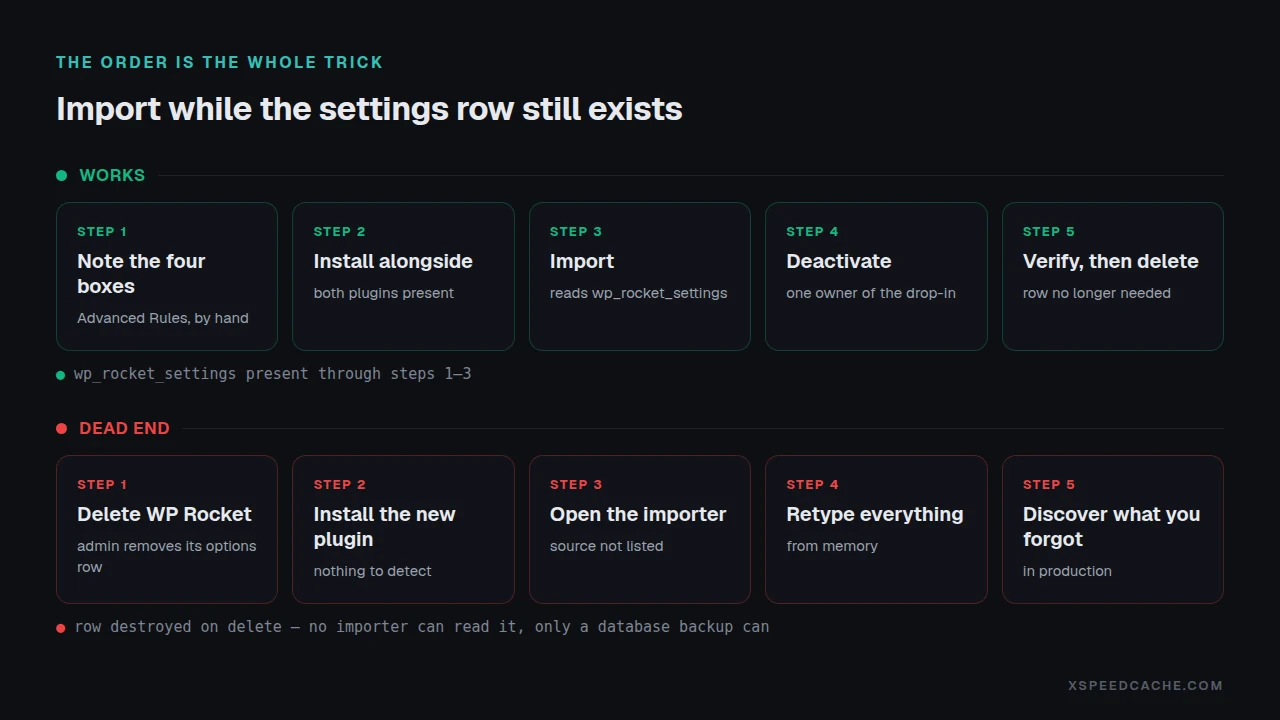
Do it in this order, or there is nothing to import
Detection is a read of the options row, not a check that the plugin is switched on. Deactivating WP Rocket leaves the row in place. Deleting it does not. That one fact fixes the order, and it holds whichever plugin you are moving to.
- Write down your four Advanced Rules boxes: Never Cache URL(s), Never Cache Cookies, Never Cache User Agent(s), Cache Query String(s). Ninety seconds now, unrecoverable later.
- Install your new cache plugin alongside WP Rocket, without deactivating anything yet.
- Bring the settings across while the row still exists, with an importer if your new plugin has one, or by retyping.
- Deactivate WP Rocket, so one plugin owns the cache drop-in.
- Verify with the checks below.
- Delete WP Rocket last.
Skip to step 6 first and no importer can help you: the row it reads is gone. The only route back is a database backup.
What the importer actually reads
xSpeed Cache is ours, built by WPDeveloper, and its migration module ships in the free plugin, not behind a licence. What follows is read from our own source on 10 September 2026: includes/class-migration.php, revision 3689601, function plan_wp_rocket().
| WP Rocket key | Lands in | Note |
|---|---|---|
purge_cron_interval | Cache Expiry | Seconds to hours, clamped 1 to 720 |
cache_reject_uri | Excluded URLs | Added to your rules, not over them |
cache_reject_cookies | Excluded Cookies | Same union behaviour |
minify_html, minify_css, minify_js | Minify | Direct booleans |
minify_concatenate_css, minify_concatenate_js | Combine CSS, Combine JS | Direct booleans |
defer_all_js | Defer JS | Direct boolean |
lazyload, lazyload_iframes, lazyload_youtube | Lazy Load images, iframes, videos | Direct booleans |
manual_preload, sitemap_preload | Preloader, daily schedule | Sitemap URLs too |
cdn, cdn_cnames | CDN URL | Only the first CNAME is taken |
do_caching_mobile_files | Nothing, flagged for review | Explained below |
The import is additive. A value that is off in the source never switches off something you already had on, and imported exclusion lists merge with yours rather than replacing them. That is what keeps the shipped safety rules for /wp-json/, /xmlrpc.php, /feed/ and ~sitemap(_index)?\.xml in place.
Only your first CDN hostname survives. If WP Rocket held several CNAMEs, the rest are dropped. Check that field afterwards.
Three settings that do not travel
WP Rocket’s Advanced Rules tab holds four boxes. Two are read, two are not, and one of them is a trap.
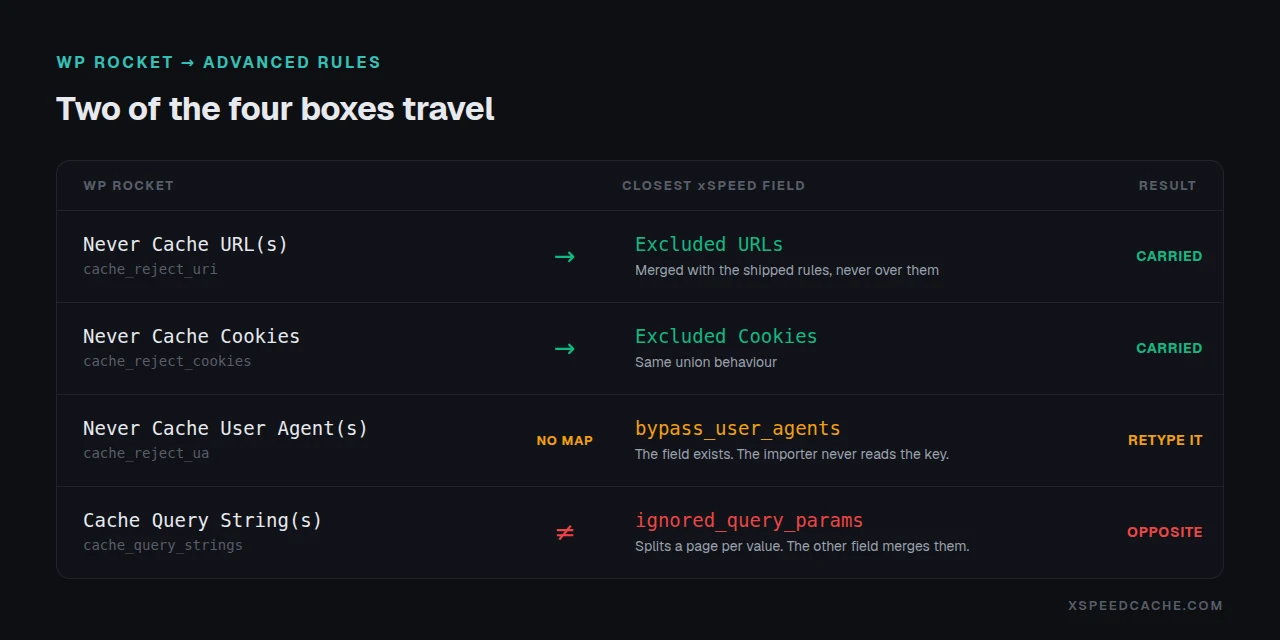
| WP Rocket box | Closest xSpeed field | Carried? |
|---|---|---|
| Never Cache URL(s) | Excluded URLs | ✅ |
| Never Cache Cookies | Excluded Cookies | ✅ |
| Never Cache User Agent(s) | Bypass User Agents | ❌ |
| Cache Query String(s) | Nothing equivalent | ❌ |
Never Cache User Agents. WP Rocket stores these in cache_reject_ua, and per its documentation the box prevents “cached and optimized pages from being served on certain devices and in certain browsers”. Our Cache module has a matching bypass_user_agents field, with the same substring, glob and regex matching. The importer never reads the WP Rocket key, so anything you excluded there has to be retyped.
Cache Query String(s), the trap. These two boxes look interchangeable and do opposite jobs. WP Rocket’s lists parameters that should each get their own cache file, so ?country=italy and ?country=france are stored separately. Our Ignored Query Parameters field lists parameters to strip before the cache key is computed, so ?utm_source=x and the bare URL share one entry. Paste a WP Rocket query-string list in there and you merge exactly the pages you asked WP Rocket to keep apart. Add those pages to Excluded URLs instead.
Separate Mobile Cache. WP Rocket switches this on by default, so almost every site has it set. Our importer detects it, records a review flag, and leaves it off. The source comment gives the reason: the static-file fast path is device-blind, and separate mobile caching disables it, dropping the site from a server-level hit to a PHP-level one. Turn it back on if your theme really does serve different HTML per device.
Critical CSS and unused-CSS removal are skipped too: the implementations differ enough that guessing would be worse than asking.
Doing this on twenty-five client sites at once
A panel is fine for one site. For a fleet, WP-CLI takes the same actions:
wp xspeed migration status
wp xspeed migration preview --source=wp-rocket
wp xspeed migration apply --source=wp-rocket --deactivate-source
--deactivate-source is off by default, and the flag’s own description says why: “running two page caches at once breaks both, but switching off another plugin is your call, not ours.”
Run the preview everywhere first. The count of settings each site would import is the fastest way to spot a client whose configuration is not what you assumed.
For agencies, xSpeed Hub reaches every attached site from one connection and logs every AI action; connecting an assistant to every site you own and our agency use case cover the rest. On multisite, only a network administrator can switch off a network-activated WP Rocket.
Prove the new cache actually took over
Run the free xSpeed Scan on the page you care about. It needs no account or API key, and check D2, “page served from cache”, is the one to read: it reports whether that response was a cache hit and which layer answered. An import that carried every setting and left caching off shows up as a partial, not a pass.
If you would rather check by hand, three commands settle it:
curl -sI https://example.com/ | grep -i x-xspeed-cache
ls wp-content/cache/
grep WP_CACHE wp-config.php
The header should report a hit on the second request. The cache directory should fill with fresh files rather than WP Rocket’s old ones. And WP_CACHE should still read true, because the new cache rewrites the same constant WP Rocket used.
One limit worth stating plainly: no scan can prove your exclusions survived, because an exclusion is the absence of a cached response. Load your cart, checkout and account pages while logged in and confirm each is served fresh. There is a deeper walkthrough in how to check whether WordPress caching is actually working.
Common mistakes people make leaving WP Rocket
- 🗑️ Deleting WP Rocket before importing. Not recoverable from inside WordPress.
- 🔁 Leaving both plugins active for weeks. Two page caches compete for
advanced-cache.php. - 🧹 Not purging after the switch. Old HTML outlives the plugin that made it; purging without anything changing covers which of the four caches in front of your URL still has it.
- 📱 Walking past the mobile review flag. It sits in the dashboard rather than raising an error.
Frequently Asked Questions
I deleted WP Rocket already. Can I still import my settings?
No. Deleting removes the wp_rocket_settings row, and that row is the only thing an importer reads. Restore a database backup from before the deletion, or set your exclusions by hand.
My Migration panel does not list WP Rocket, but the plugin is right there.
The plugin needs to have been configured at least once so its settings row exists. A fresh install that was never saved has nothing to read.
I imported and got fewer settings than I expected. Is it broken?
No. Only settings with a clean match are imported; options that behave differently are skipped rather than guessed at. The preview lists what will be written before you confirm.
My site is slower after importing than it was on WP Rocket.
Check Separate Mobile Cache first. It is deliberately not imported, so a site that serves different HTML per device caches one variant for everyone until you switch it back on.
My cart page is being cached now and it was not before.
Your Never Cache URLs were imported and merged with the shipped ones, so this is more likely a cookie rule. Compare your old Never Cache Cookies list against Excluded Cookies.
I already tuned my xSpeed settings. Will importing overwrite them?
No. The import writes only values the source actually had enabled, and exclusion lists are merged with yours.
Is the migration feature free, or do I need a licence?
It is in the free plugin. MigrationModule::TIER is set to free in the shipped source, and Free vs Pro lists Migration as included in Free. Our documentation page still says Pro is required, which is wrong and is being corrected.
Does this work for W3 Total Cache or LiteSpeed Cache too?
Yes, and WP Super Cache. Those two keep their settings in files on disk rather than the options table, at wp-content/w3tc-config/master.php and wp-content/wp-cache-config.php, so the files must be readable.
Do I have to move to xSpeed to leave WP Rocket?
No. Every step above except the import is plugin-agnostic. On LiteSpeed hosting, LiteSpeed Cache is free and its server-level cache is genuinely faster than any PHP-level one. WP Fastest Cache sells a one-time licence rather than a subscription, which some people prefer. Neither ships an importer, so budget the retyping time.
What happens to WP Rocket’s database tables after I delete it?
Deleting from the WordPress admin removes them. Removing the plugin folder over FTP does not, and its uninstall page lists all eight wp_wpr_* tables to drop by hand.
Your migration, in the right order
What to do this week:
- Write down your four Advanced Rules boxes, especially Never Cache User Agents and Cache Query String(s).
- Import before you deactivate, and delete last. Run it on staging if you have one.
- Read the preview, including its notes on anything that could not be carried exactly.
- Re-check Separate Mobile Cache and your CDN hostname afterwards.
- Run the free xSpeed Scan and read check D2, then load your cart, checkout and account pages while logged in.
Every source plugin’s full mapping is in our migration documentation, and the 80-capability comparison shows which plugins ship an importer at all. xSpeed Cache is one of the few, that module is free, and the Pro layer starts at $29 a year on the founding price with a 14-day money-back guarantee (pricing).
Migrating a caching plugin is mostly bookkeeping. The part that bites is doing the steps in the wrong order, and that part is free to get right.