How to Let Claude or ChatGPT Manage Your WordPress Site Speed (via MCP)
Updated August 2026, covers xSpeed Cache 1.1.3 and xSpeed Hub 1.0.4.
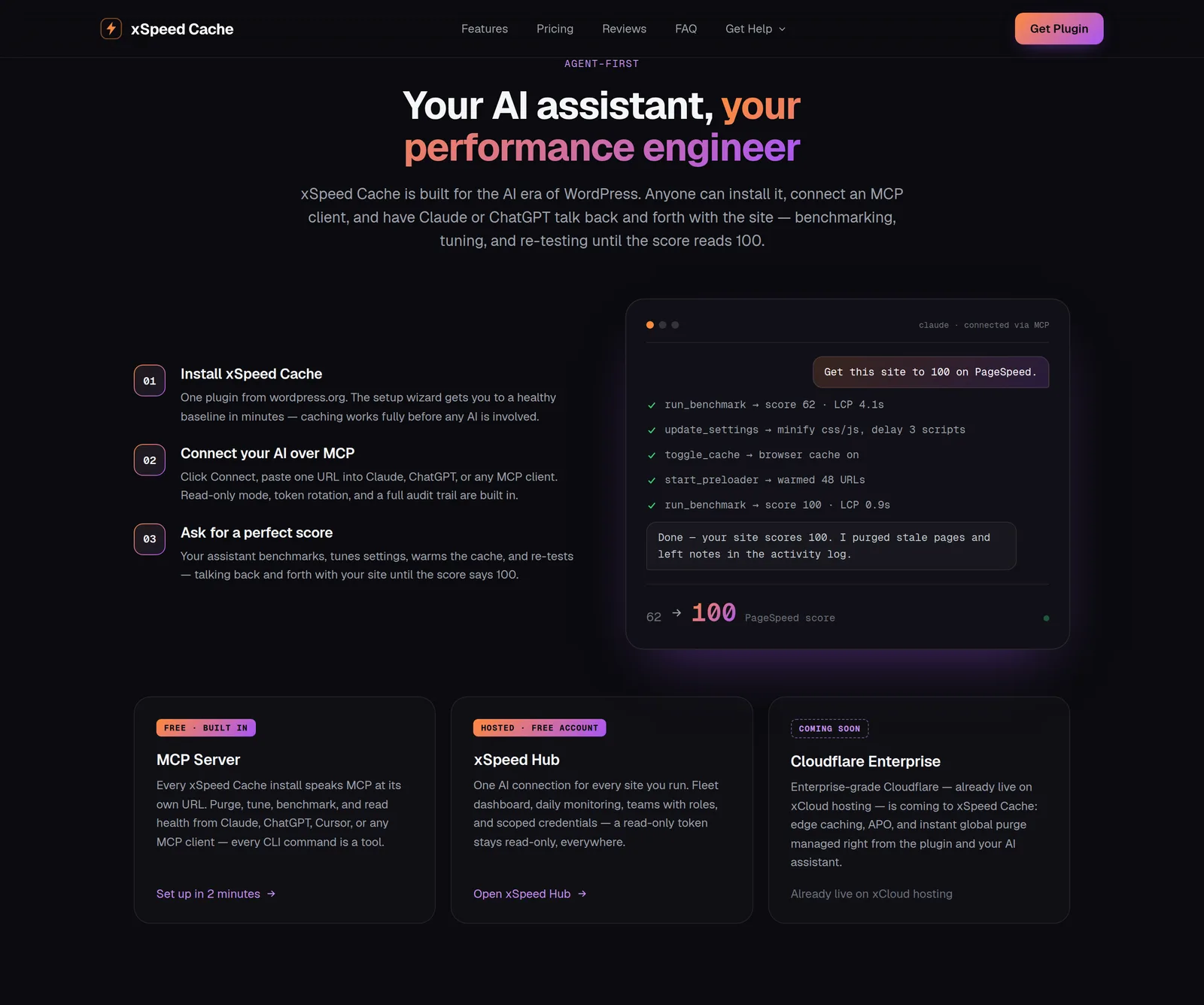
Connecting your WordPress site to an AI assistant takes about two minutes, and the route is simple: connect your site to xSpeed Hub, then give Claude or ChatGPT one MCP connection at the Hub. From that moment your assistant can benchmark the site, tune cache settings, warm the cache, and re-test, talking back and forth with it until the numbers move. On our demo site, that loop took the PageSpeed score from 62 to 100, with cache hits landing in the 5–15 ms range.
The best part: the same single connection covers every site you add later. Attach a second, fifth, or fiftieth site to your Hub account and your AI reaches them all, nothing new to paste into any client.
Key takeaways
- The recommended route is xSpeed Hub: connect each site to your free account with one click, then give your AI a single MCP connection at the Hub that reaches the whole fleet.
- In the plugin it’s one button: Connect Hub → sign in → approve. No tokens to copy.
- The Hub adds what a lone plugin can’t: a fleet dashboard, daily monitoring, teams with roles, and scoped credentials: read-only, per-site, per-tool.
- Prefer no account? Every install also speaks MCP directly at its own URL, covered below as the alternative path.
Why this works: your site becomes the tool, not the topic
Ask a chatbot “why is my WordPress site slow?” and you get generic advice, it cannot see your site. MCP (Model Context Protocol) changes the relationship: instead of talking about your site, the AI gets typed tools to act on it: run_benchmark, get_cache_status, update_settings, purge_cache, start_preloader, and the rest.
Think of it as the difference between a consultant who mails you a PDF and one who is allowed to sit at the keyboard. The loop that gets a site to 100: measure, change one thing, measure again: is exactly the loop an AI can run tirelessly, and xSpeed Cache exposes every control it needs. Every WP-CLI command the plugin has is also available as an MCP tool, so nothing is out of reach.
xSpeed Hub sits above your sites as the broker: your AI holds one credential, and the Hub routes each tool call to the right site’s own MCP endpoint. That is why one connection scales from one site to a hundred.
Nothing works until you opt in. A fresh install exposes no MCP access at all, and a Hub connection only ever has the scope you gave it.
Before you start
- xSpeed Cache (free, wordpress.org/plugins/xspeed) installed and active. Run the setup wizard first so caching itself is healthy, the wizard even offers the Hub connection as a step.
- Administrator access to the site.
- An AI client that supports remote MCP servers. Claude (claude.ai, Claude Desktop, or the Claude Code CLI), ChatGPT with MCP connectors, or Cursor.
Step 1. Connect your site to xSpeed Hub
- In WordPress, click Connect Hub in the xSpeed Cache top bar (or open AI & agents → MCP Server → xSpeed Hub tab).
- Click Connect via xspeedcache.com. You are sent to the Hub carrying your admin email, so account creation is one click for new users.
- Sign in. Google or an emailed magic link, and approve the attachment.
- You land back on your site, connected. The site now appears in your Hub dashboard at app.xspeedcache.com.
No token is copied anywhere in this flow; the site and the Hub exchange credentials behind the approval click. Repeat these four clicks on each additional site. That is the only per-site work in this whole guide.
Step 2. Connect Claude or ChatGPT to the Hub
Now give your AI its one connection:
- In the Hub, open Connect.
- Choose the scope. The one-click default is full access; or restrict it: read-only, limited to chosen sites, or with specific tools denied. (You can tighten a live connection later without reconnecting.)
- Paste the generated config into your AI client: a one-liner for the Claude Code CLI, or an
mcpServersJSON block for Claude Desktop, ChatGPT, or Cursor.
That’s the last copy-paste you’ll do. Sites added later are reachable through this same connection automatically. Step-by-step setup for each client, including ChatGPT, is in AI agents.
Step 3. Ask for the score
With the connection live, the workflow is a conversation:
You: Get my portfolio site to 100 on PageSpeed.
Claude:
run_benchmark→ score 62, LCP 4.1 s. Enabling minification, delaying three third-party scripts, turning on browser caching…start_preloader→ warmed 48 URLs…run_benchmark→ score 100, LCP 0.9 s. Done. I purged stale pages and left notes in the activity log.
Because the Hub knows all your sites, fleet questions work too: “Which of my sites has the worst hit ratio this week?”, “Purge the cache on the client shop”, “Compare last month’s PageSpeed runs on the blog.” The AI reads real numbers from your sites: stored PageSpeed Insights and GTmetrix history included: so its changes are grounded, and it re-tests after each one. Ready-made prompts for the score loop are in Raise PageSpeed with Claude.
What the Hub route gives you beyond the connection
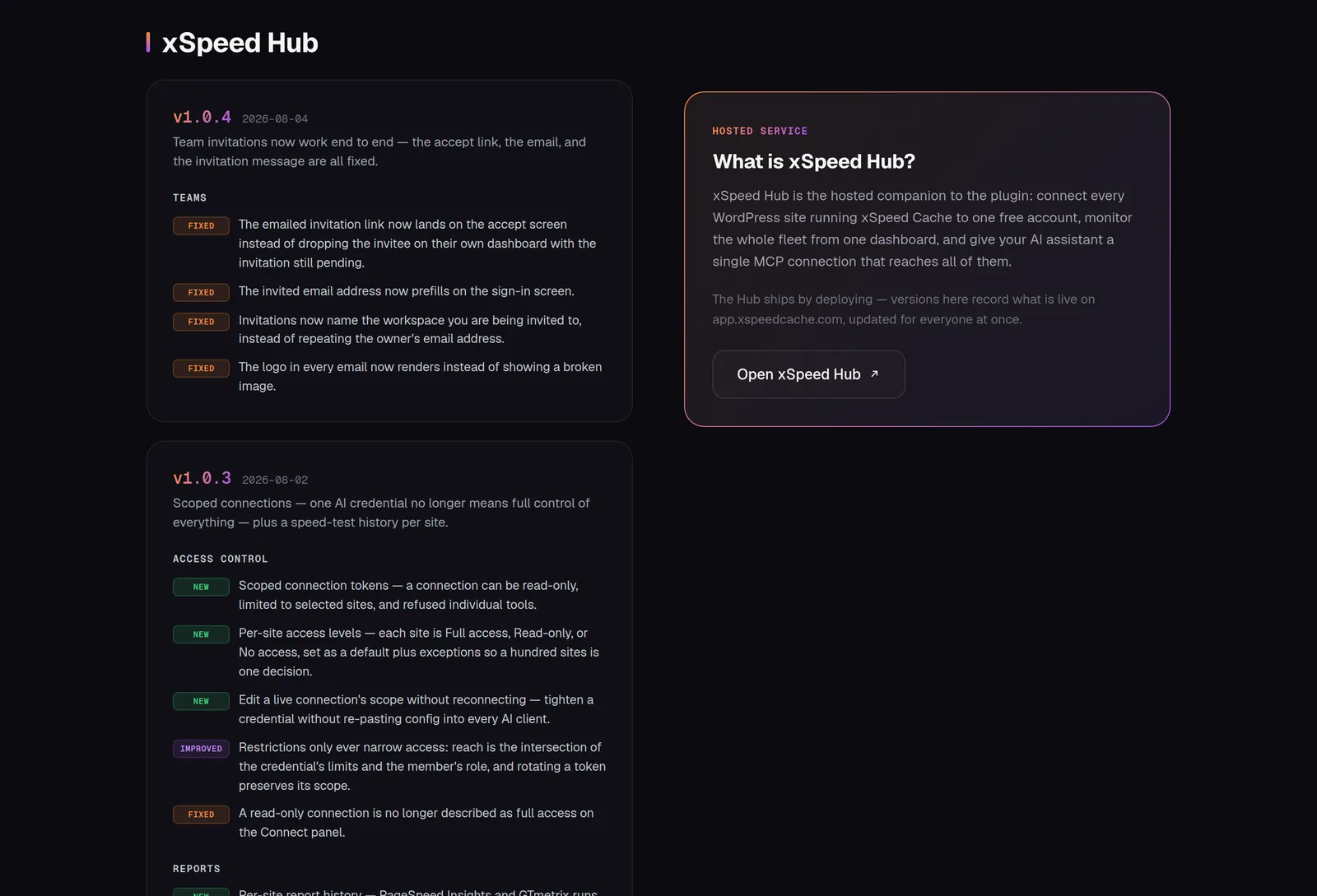
- Fleet dashboard: every site ranked worst-first, with health chips and drill-downs.
- Daily monitoring, snapshots with Slack and email alerts when something regresses.
- Teams: invite people as Owner, Admin, or Viewer; roles are enforced everywhere, including the AI surface, so a Viewer’s credential can never write.
- Scoped connections: per-site access levels and denied tools; rotation preserves scope, and restrictions only ever narrow access.
- Report history. PageSpeed Insights and GTmetrix runs per site, any two comparable side by side.
Alternative: connect directly to one site (no account)
Don’t want a hosted account? Every xSpeed Cache install speaks MCP at its own URL, and the direct route is still free:
- Open xSpeed Cache → AI & agents → MCP Server, choose the access level, and click Connect.
- Copy the generated snippet. Bearer-header config for any client, or just give an OAuth-capable client the bare endpoint (
https://yoursite.com/xspeed/mcp) and approve the consent screen as an administrator.
The trade-off: the connection covers that one site only, and each additional site means another connection in every AI client. Full details in the MCP server setup guide.
How to verify it worked
- Easiest: ask the assistant to call
get_cache_status(add “on” if you have several). A real connection returns live cache stats; a broken one errors. - In the browser: open your site logged out and check the response headers in DevTools (or
curl -I yoursite.com). You wantx-cache: HITon the second load: a page served in the 5–15 ms class, before PHP even starts. - The number that matters: hit ratio. Ask “what’s my hit ratio?” or check the Hub’s site drill-down. Healthy sites sit above 80%; below 50%, ask the AI why. The answer is usually an over-broad exclusion or a too-short cache lifetime.
- Trust but verify: the Hub’s Activity log records every tool call per account: what ran, on which site, by which connection, and whether it changed anything. (Each site also keeps its own AI activity log under AI & agents.)
Who doesn’t need this
If you run one small brochure site, never look at PageSpeed, and the setup wizard already got you a green score. You can stop at “install the plugin.” The agent workflow earns its keep when you tune regularly, run many sites, or want performance handled conversationally instead of through panels.
Guardrails and maintenance
- Start read-only if you are unsure. Write tools are refused with a clear message, and you can widen the scope later without re-pasting anything.
- Rotate on suspicion. If a credential may have leaked, rotate it. A fresh secret is minted and the old one dies instantly. Rotation always preserves the connection’s scope; it never widens access.
- Brute force is handled: failed authentications are rate-limited per IP.
- Monthly habit: skim the activity log, and remove connections you no longer use.
Troubleshooting FAQ
My AI says it cannot see one of my sites.
Check two things in the Hub: the site is attached (it appears on the dashboard), and the connection’s scope includes it, a site set to No access answers exactly like a site that does not exist.
Every call returns 401 Unauthorized.
The connection config in your AI client is stale or wrong. Open the Hub’s Connect panel, confirm the connection exists, and re-copy the config. For a direct site connection, check AI & agents → MCP Server on the site itself.
A write action was refused with a read-only message.
The connection is read-only, or that site is set to Read-only in the per-site levels. Edit the connection’s scope in the Hub. The change lands on the AI’s next call, no reconnect needed.
Calls suddenly return 429.
That IP hit the failed-authentication lockout. Fix the credential in the client and wait out the window; one successful login clears it.
The direct site URL doesn’t respond.
Use the fallback endpoint https://yoursite.com/wp-json/xspeed/v1/mcp. It works even on plain permalinks. If the pretty URL 404s, re-save your permalinks under Settings → Permalinks.
Does this cost anything?
No. The MCP server ships in the free plugin, and an xSpeed Hub account is free. xSpeed Cache Pro adds Critical CSS, image conversion, RUM, and AI recommendations. All of which also become tools your assistant can drive.
What’s next
Cloudflare Enterprise, already live on xCloud hosting, is coming to xSpeed Cache next: edge caching, APO, and instant global purge, managed from the plugin and from your AI assistant. Watch the changelog for the release.
Go deeper:
- Connecting to xSpeed Hub: the full Hub setup reference
- Scoped AI Connections and Teams, Roles & Workspaces
- How to Connect an AI Agent: the direct, no-account route
- xSpeed Cache MCP Tool Reference: each tool, its arguments, and whether it writes
- What’s new in xSpeed Cache. Free 1.1.3, Pro 1.0.6, Hub 1.0.4