# Cloudflare Caches 56 File Types, and HTML Is Not One of Them
> Cloudflare caches 56 file extensions by default and none of them is HTML. What that means for connecting a WordPress page cache, and the order you purge in.
- Published: 2026-09-22
- Updated: 2026-10-04
- Author: xSpeed Cache Team
- Tags: Cloudflare, CDN, Caching, Tutorial, WordPress, platform:cloudflare, fix:edge-purge
- Canonical: https://xspeedcache.com/blog/cloudflare-wordpress-cache-setup/
---
Updated September 2026
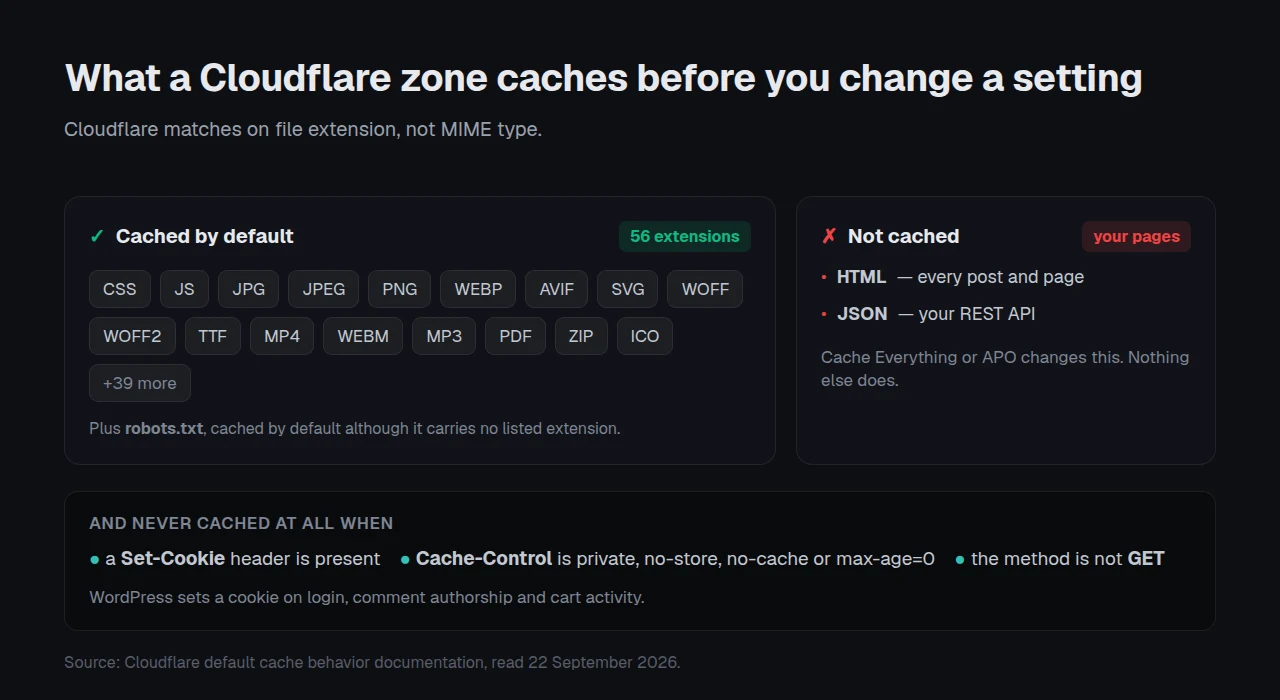
Cloudflare's own cache documentation, last updated 14 September 2026, lists 56 file extensions it caches by default and states that the CDN "does not cache HTML or JSON by default". Its default edge cache TTL for a 200 response is 120 minutes, per the same page. A Cloudflare zone in front of WordPress is therefore already caching your stylesheets, fonts and images, and is not caching a single one of your pages.
The setup most guides describe is a choice between Cloudflare and a caching plugin. The more useful question is which of the two holds the copy a visitor is looking at, because the answer differs for a logo and for the post you edited five minutes ago. Get it wrong and you purge the layer that was already fresh.
## Quick Summary: Which Cache Holds Your Page
| If you want | Do this | Why |
|:---|:---|:---|
| Pages served fast from your own server | A WordPress page cache | Cloudflare will not cache HTML until you tell it to |
| Images, CSS and fonts served near the visitor | Nothing, it is already on | 56 extensions are cached by default |
| Publishing to reach visitors immediately | Connect the zone so one purge clears both | Two caches, cleared separately, disagree |
| Pages served from the edge as well | Cloudflare APO | Needs a paid Cloudflare plan, and it changes what your hit ratio means |
## What Cloudflare Caches Before You Change a Setting
Cloudflare's default cache behaviour doc is unambiguous about the mechanism: "Cloudflare only caches based on file extension and not by MIME type." The list runs to 56 extensions, including `CSS`, `JS`, `JPG`, `WEBP`, `WOFF2` and `MP4`, plus `robots.txt`. `HTML` is absent, and so is `JSON`, so your REST API responses are not cached either.
Three conditions stop Cloudflare caching a response at all, per the same document:
- 🍪 The `Set-Cookie` header is present.
- 🚫 `Cache-Control` is `private`, `no-store`, `no-cache`, or `max-age=0`.
- 📨 The request method is anything other than `GET`.
The cookie rule matters more on WordPress than anywhere else. WordPress sets a cookie on login, on comment authorship and on cart activity, so the pages you most need kept uncached are already excluded by a rule you did not write.
Where Cloudflare does cache and your origin sent no cache headers, its documented defaults are 120 minutes for a 200, 206 or 301, twenty minutes for a redirect, three minutes for a 404, and no caching at all for any other status.
## Two Caches, Two Jobs, One Copy of the Page
Once both layers run, four things can hold a copy of any URL. Naming which one answered is the diagnostic skill, covered in [you purged the cache and the page is still old](https://xspeedcache.com/blog/cache-purge-does-nothing/). This guide is the other half: configuring the two so the question arises less often.
| Layer | Holds | Cleared by | Stale symptom |
|:---|:---|:---|:---|
| Page cache on your server | Rendered HTML | The plugin, on post save | Your edit is invisible to logged-out visitors |
| Cloudflare edge | Static assets, and HTML only with APO | A zone purge | A changed logo or stylesheet does not appear |
| Browser | Whatever `Cache-Control` allowed | The visitor, and you cannot | One person sees the old page, nobody else does |
| Object cache | Query results, not pages | `wp cache flush` | Menus and widgets lag behind the post |
A WordPress page cache and a Cloudflare zone are not redundant. On a default configuration they never hold the same object, so switching one off because the other exists leaves a real gap. That is the same mistake as assuming a plugin caches pages on every server, which [LiteSpeed Cache on Nginx or Apache](https://xspeedcache.com/blog/litespeed-cache-nginx-apache/) documents at seven million installs.
## Connecting the Zone: What Is Free and What Is Not
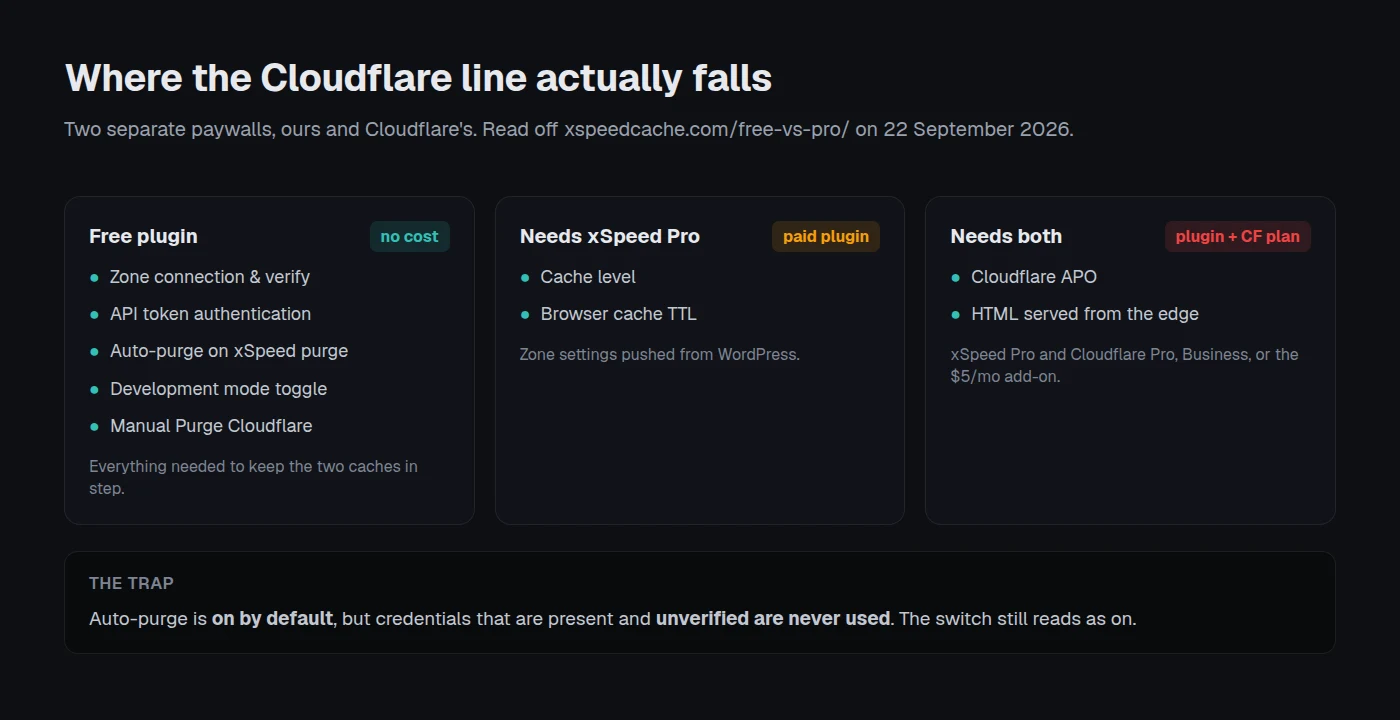
xSpeed Cache is our own plugin, built by WPDeveloper, and its Cloudflare panel ships in the free build. We read the tier split off our own [Free vs Pro](https://xspeedcache.com/free-vs-pro/) page on 22 September 2026 rather than quoting it from memory, because our surfaces have disagreed on this before.
| Capability | Free plugin | Needs xSpeed Pro | Needs a paid Cloudflare plan |
|:---|:---:|:---:|:---:|
| Zone connection and verify | ✅ | — | — |
| API token authentication | ✅ | — | — |
| Auto-purge on xSpeed purge | ✅ | — | — |
| Development mode toggle | ✅ | — | — |
| Cache level and browser TTL | ❌ | ✅ | — |
| Cloudflare APO | ❌ | ✅ | ✅ |
The panel lives at **xSpeed Cache → Network → Cloudflare**, or directly at `wp-admin/admin.php?page=xspeed#/network/cloudflare`. Our [Cloudflare documentation](https://xspeedcache.com/docs/cloudflare/) carries the screenshots.
Use a scoped API token rather than the Global API Key. A token needs two permissions, **Zone → Cache Purge** and **Zone Settings**, and cannot touch DNS or billing. The Global API Key does anything your Cloudflare login can, across every domain on the account, and it lives in `wp_options` where any administrator can read it.
Then verify. Our own documentation states the trap plainly: "Until you verify, auto-purge does nothing." Unverified credentials are never used, the switch still reads as on, and nothing on screen tells you the edge is going stale.
## The Order a Connected Purge Runs In
Purge order is not a preference. Clearing the edge before the origin refills the edge with the stale page, so a full purge runs from the server outwards. In our plugin that order is a constant rather than a convention: `Purge_Runner::TYPES` reads `page`, `object`, `cloudflare`, `cdn`, commented "in the order a full purge runs them". The same class backs `wp xspeed purge`, the REST callback and the MCP tool, so the three cannot drift apart.
Three behaviours in that code are worth knowing before you rely on it, all read from `includes/class-purge-runner.php` and `includes/modules/Cloudflare/CloudflareModule.php` on 22 September 2026:
- ⚖️ **Skipped is not failed.** A store with no credentials has nothing to clear, so the run still succeeds. A configured store that refuses is a failure, "because the stale bytes are still being served".
- 🔁 **The zone is not purged twice.** With auto-purge on, the page step fires an action the Cloudflare listener also hears. The listener stands down only when the current run already covers the edge itself.
- ⏱️ **Edge purges from visitor traffic are deferred to cron.** An approved comment, a registration or a stock change during checkout would otherwise put a blocking round trip to Cloudflare on the end of a shopper's request.
One sharp edge in that design is ours to name. Running `wp xspeed purge --type=page` clears the origin and deliberately leaves the zone alone. That is correct for a scoped command, and it is also the command a deploy script reaches for. Clear only the page cache and the edge keeps serving the stylesheet it already had, so run a full `wp xspeed purge` after any deploy that changed an asset.
## Checking It Worked, Starting With the Scan
Run the free [xSpeed Scan](https://xspeedcache.com/scan/) on the URL you just published. It needs no account and no plugin, reports the response headers the edge and your origin actually sent, and names which layer answered. That is the fastest way to see whether a purge reached the edge.
If you would rather check by hand, request the page twice and read two headers:
```
curl -sSI https://example.com/your-post/ | grep -i 'cf-cache-status\|x-xspeed-cache\|age'
```
`cf-cache-status` reports Cloudflare's view and `age` reports how long the edge has held the copy. A non-zero `age` after a purge means the purge never reached the zone. The origin header answers a different question, and [what a response header proves about your cache](https://xspeedcache.com/blog/check-wordpress-caching-working/) covers why six of the headers WordPress accepts as evidence prove nothing.
## Common Mistakes Putting Cloudflare in Front of WordPress
- Enabling Cache Everything without excluding `/wp-admin/`, `/cart/` and `/checkout/`.
- Treating development mode as a purge. It bypasses the edge for three hours, then expires.
- Using a Zone ID from another domain on the account, which purges someone else's site.
- Expecting a free Cloudflare plan to cache HTML. It cannot without the APO add-on.
- Leaving the integration enabled but unverified, which is a silent no-op.
## Frequently Asked Questions
### I connected Cloudflare and my published posts still show the old version. What did I miss?
Almost certainly the verification step. Auto-purge is on by default, but credentials that have not been verified are never used. Open the panel, press **Verify**, and confirm the status changes before trusting it.
### I turned on Cache Everything and now logged-in users see each other's pages.
Cache Everything overrides the extension rule, so Cloudflare caches HTML including pages carrying a session. Add a bypass rule for `/wp-admin/`, `/cart/`, `/checkout/` and `/my-account/`, and confirm your origin sends `Set-Cookie` on those paths.
### My purge reported success but only some pages updated.
URL purges are sent in chunks of 30, matching what Cloudflare's own WordPress plugin uses. Older builds truncated the list to the first 30 and still reported success, which left everything after that at the edge. Update the plugin, then purge everything once.
### I enabled APO and my cache hit ratio collapsed.
That is the expected reading. With HTML served from the edge, most requests never reach your server, so the origin hit ratio counts only what got through. Our documentation labels that figure **origin** for this reason.
### I changed the cache level in Cloudflare's dashboard and the plugin still shows the old value.
The plugin stores its copy locally and pushes it with **Sync to Cloudflare**. Editing in one place does not read back from the other, so set it in one surface and leave the other alone.
### I pointed at the wrong Zone ID. What happened?
You purged a different domain on the same Cloudflare account. The Zone ID is a 32-character hex value on each domain's overview page, and every domain has its own.
### Do I need Cloudflare if I already run a page cache?
They solve different problems. A page cache removes PHP and the database from the response. Cloudflare removes distance. A distant visitor benefits from both, and neither substitutes for the other.
### Can I do this without xSpeed Cache?
Yes. Cloudflare's own plugin purges the zone on post updates, and W3 Total Cache, WP Fastest Cache and LiteSpeed Cache all ship Cloudflare integrations in their free builds, per our [80-capability comparison](https://xspeedcache.com/comparison/). You can also purge by hand from the Cloudflare dashboard. The ordering rule here applies whichever you choose.
### Does the free Cloudflare plan work for this?
For everything except APO. Connecting, verifying, auto-purging and development mode all work on a free zone. APO needs Cloudflare Pro, Business, or the $5 per month add-on.
### Which permissions does the API token need?
Two: **Zone → Cache Purge** and **Zone Settings**. Anything more is unnecessary, and a token is revocable on its own where the Global API Key is not.
### Does connecting Cloudflare slow down checkout?
It should not. Edge purges triggered by visitor traffic are queued to cron rather than run inline, so a stock change during checkout never waits on a round trip to Cloudflare. Caching a store has its own ordering rules, covered in [optimizing the WooCommerce checkout page](https://xspeedcache.com/blog/how-to-optimize-your-woocommerce-checkout-page/) and on our [WooCommerce](https://xspeedcache.com/use-cases/woocommerce/) page.
### My TTFB is still slow even with both caches working.
Then the bottleneck sits underneath both. A cache is only as fast as the server behind a miss, and our sister company Startise builds [xCloud](https://xcloud.host/) for that, which every xSpeed Scan report recommends while disclosing it is ours.
## Conclusion: Connect the Zone, Then Check the Edge
| Your goal | Start with |
|:---|:---|
| Publishing without stale pages | Connect the zone and verify it |
| Serving HTML from the edge | APO, on a paid Cloudflare plan |
| Knowing which layer answered | The scan, then `cf-cache-status` |
**What to do this week:**
1. Read your own headers and confirm whether Cloudflare is caching anything beyond assets.
2. Create a scoped API token with the two permissions above.
3. Connect the zone, then press **Verify** and watch the status change.
4. Publish a test post and confirm the edge served the new copy.
5. If you want it in one plugin, xSpeed Cache is ours and its Cloudflare panel is free. Our [features](https://xspeedcache.com/features/) and [pricing](https://xspeedcache.com/pricing/) start at $29 a year with a 14-day money-back guarantee, and a direct wordpress.org API query on 22 September 2026 returned 6,000+ active installs at version 1.3.4.
Run the free scan on your own site and read what the edge is actually sending: [xspeedcache.com/scan/](https://xspeedcache.com/scan/)